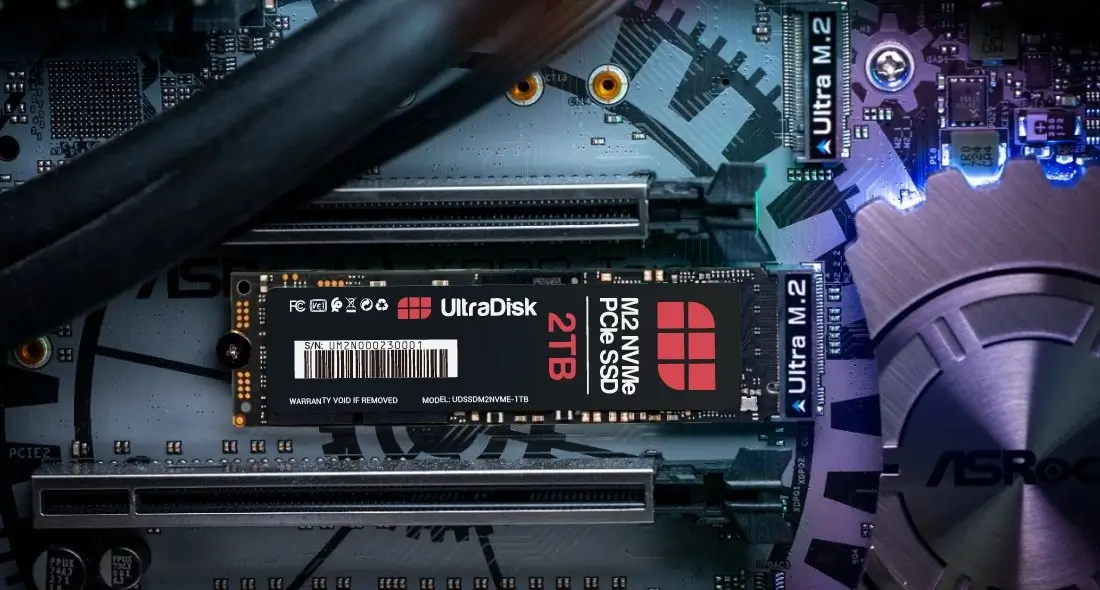
Many users love the peace of mind that comes with data security. Because of this, Microsoft automatically enables Windows 11 BitLocker encryption on many modern laptops and desktops. However, a burning question continues to circulate within the tech community. Is standard Windows 11 BitLocker encryption slowing down your NVMe SSD performance? Today, we will dive deep into this technical dilemma to uncover the truth.
Storage technology has advanced rapidly over the last few years. Modern NVMe SSDs deliver blistering read and write speeds that completely dwarf old mechanical hard drives. Unfortunately, implementing deep security measures can sometimes introduce unexpected performance bottlenecks. In this comprehensive guide, we will analyze how drive encryption impacts your daily workflow.
The Marriage of Windows 11 and BitLocker Encryption
Microsoft designed Windows 11 with a strict focus on modern security standards. Consequently, the operating system frequently turns on BitLocker during the initial setup process. This feature protects your sensitive data from physical theft and unauthorized access. It scrambles your files into unreadable code until you log in securely.
However, this constant protection requires a continuous stream of mathematical calculations. Every time you open a file, your processor must decrypt the data on the fly. Conversely, the system must encrypt any new data before saving it to the drive. This background activity can place a noticeable burden on your hardware components.
How Standard Software BitLocker Impacts NVMe SSD Performance
To understand the performance drop, we must examine the two different types of BitLocker deployment. Most consumer PCs utilize standard software-based encryption by default. This method forces your central processing unit (CPU) to handle all the cryptographic workloads. Even though modern CPUs are incredibly fast, this process still introduces micro-delays.
High-end NVMe drives can easily transfer data at speeds exceeding 7,000 megabytes per second. Therefore, software encryption often creates a massive bottleneck because the CPU cannot process data that quickly. Several independent laboratory benchmarks show that software BitLocker can reduce random write speeds by up to 45 percent. This significant drop can negatively impact heavy multitasking and file transfers.
Software vs Hardware Encryption: The Crucial Difference
Thankfully, you do not always have to rely on your CPU for data security. Many premium solid-state drives feature built-in cryptographic processors. This feature allows the drive to handle the encryption process entirely on its own hardware. Tech enthusiasts formally refer to this efficient method as hardware-encrypted drive technology.
+-------------------------------------------------------------------+
|                     BITLOCKER ENCRYPTION PATHS                    |
+-------------------------------------------------------------------+
|                                                                   |
|  [Software BitLocker] --> Relies on CPU --> Heavy Performance Hit  |
|                                                                   |
|  [Hardware BitLocker] --> Relies on SSD --> Zero Performance Hit   |
|                                                                   |
+-------------------------------------------------------------------+
When you use hardware encryption, your NVMe SSD retains its full theoretical performance. The drive decrypts information instantly without involving your main system processor. Sadly, Windows 11 often defaults to software encryption anyway, even if your SSD supports the hardware alternative. This occurs due to strict Microsoft security compliance policies that prioritize software control.
Real-World Benchmarks: Gaming, Coding, and Daily Tasks
You might wonder how these synthetic benchmark drops translate into your daily computer usage. For basic office tasks, you will likely notice no difference at all. Web browsing, word processing, and video streaming do not saturate the massive bandwidth of an NVMe drive. Therefore, casual users can safely keep BitLocker enabled without fearing a sluggish system.
💡 Pro-Tip: If you frequently edit 4K videos or compile massive codebases, software BitLocker will actively slow you down. Disable software BitLocker or switch to a hardware-encrypted drive to restore your maximum rendering speeds.
For PC gamers, the performance impact remains relatively minimal but measurable. Games generally rely heavily on sequential read speeds during loading screens. Software BitLocker impacts read speeds far less than random write speeds. However, upcoming modern games utilizing technologies like DirectStorage may experience slightly longer loading times when software encryption operates in the background.
How to Check Your Current BitLocker Status
Before changing any system settings, you must determine your drive’s current encryption state. Windows 11 hides this detailed information deep within its advanced administrative utilities. Luckily, you can quickly find the truth by using the built-in Windows PowerShell tool.
First, right-click your start menu button and select PowerShell as an administrator. Next, type the following command precisely to view your drive statistics:
manage-bde -status
Press enter, and look closely at the “Encryption Method” and “Hardware Encryption” fields. If the results display “XTS-AES,” your system is currently utilizing software encryption. If it explicitly states “Hardware Encryption,” your SSD is performing beautifully at its maximum potential speed.
Step-by-Step Guide to Disabling BitLocker Safely
If you decide that maximum SSD speed outweighs your physical security needs, you can turn off the encryption. Please remember that this action exposes your data if someone steals your physical computer. Ensure you back up your critical files to an external location before proceeding.
- Open your Windows Start Menu and type Control Panel.
- Click on System and Security, then select BitLocker Drive Encryption.
- Locate your primary operating system drive from the list.
- Click the link that says Turn off BitLocker.
- Confirm your choice in the pop-up dialog box.
Your computer will now begin the decryption process in the background. This process can take anywhere from twenty minutes to several hours depending on your drive size. You can safely continue using your PC during this time, though performance might stutter temporarily. Once completed, your NVMe drive will operate entirely unrestricted.
Maximizing Your NVMe SSD Speed Without Sacrificing Security
You do not necessarily have to choose between ultimate data safety and blistering drive performance. You can achieve both goals by forcing Windows 11 to utilize hardware encryption. To accomplish this, you must first verify that your drive complies with the TCG Opal storage security standards. Popular manufacturers like Samsung offer detailed compatibility lists on their official support websites.
⚠️ Warning: Enabling hardware BitLocker usually requires a completely clean installation of Windows 11. You must configure your motherboard BIOS settings and wipe the drive before the operating system will hand over encryption duties to the SSD hardware.
Furthermore, you can optimize your Windows power delivery settings to mitigate software encryption slowdowns. High-performance power profiles allow your CPU to maintain higher clock speeds under background encryption workloads. This simple adjustment helps the processor crunch cryptographic numbers much faster during intense file transfers.
Alternative Encryption Tools for Power Users
If you dislike Microsoft’s standard implementation, several third-party alternatives offer excellent customization. Many open-source developers create security tools that prioritize system performance and user control. These applications often allow you to select lighter encryption algorithms that demand far less CPU horsepower.
For instance, VeraCrypt stands as a highly respected open-source encryption suite worldwide. It offers customized benchmarking tools built directly into the application installer. This allows you to test various cryptographic methods on your specific CPU before locking your drive. Consequently, you can choose the fastest algorithm that still protects your private information securely.
Final Thoughts
Standard Windows 11 BitLocker encryption definitely slows down NVMe SSD performance in specific scenarios. Software-based encryption steals precious CPU cycles and creates an artificial ceiling for random write operations. However, the average user will rarely notice these technical speed drops during normal daily activities.
If you require every single megabyte of speed for professional workloads, you should definitely optimize your setup. Investigate hardware encryption options or consider disabling BitLocker entirely if your PC remains in a secure location. Balancing security and speed always requires a personal compromise based on your unique workflow.
What are your thoughts on this security tax? Have you noticed a speed boost after disabling BitLocker on your Windows 11 machine? Let us know your benchmark results in the comments section below, and do not forget to share this article with your fellow tech enthusiasts!