Upgrading a business in the Philippines comes with unique challenges. Most of our commercial buildings are “concrete bunkers”—built with thick, reinforced concrete walls and floors that are excellent for typhoons but terrible for Wi-Fi. If you’ve ever wondered why your Wi-Fi dies the moment you walk into the next room or go up a flight of stairs, physics is the culprit.
Here is how you can use Ubiquiti UniFi to build a professional, “dead-zone free” network that includes a high-tech phone system (PABX) for your 3-story building.
The Core Infrastructure: The “Brain” of Your Office
Every smart office needs a central “brain.” For a 3-story building, we recommend the UniFi Dream Machine Pro (UDM-Pro).
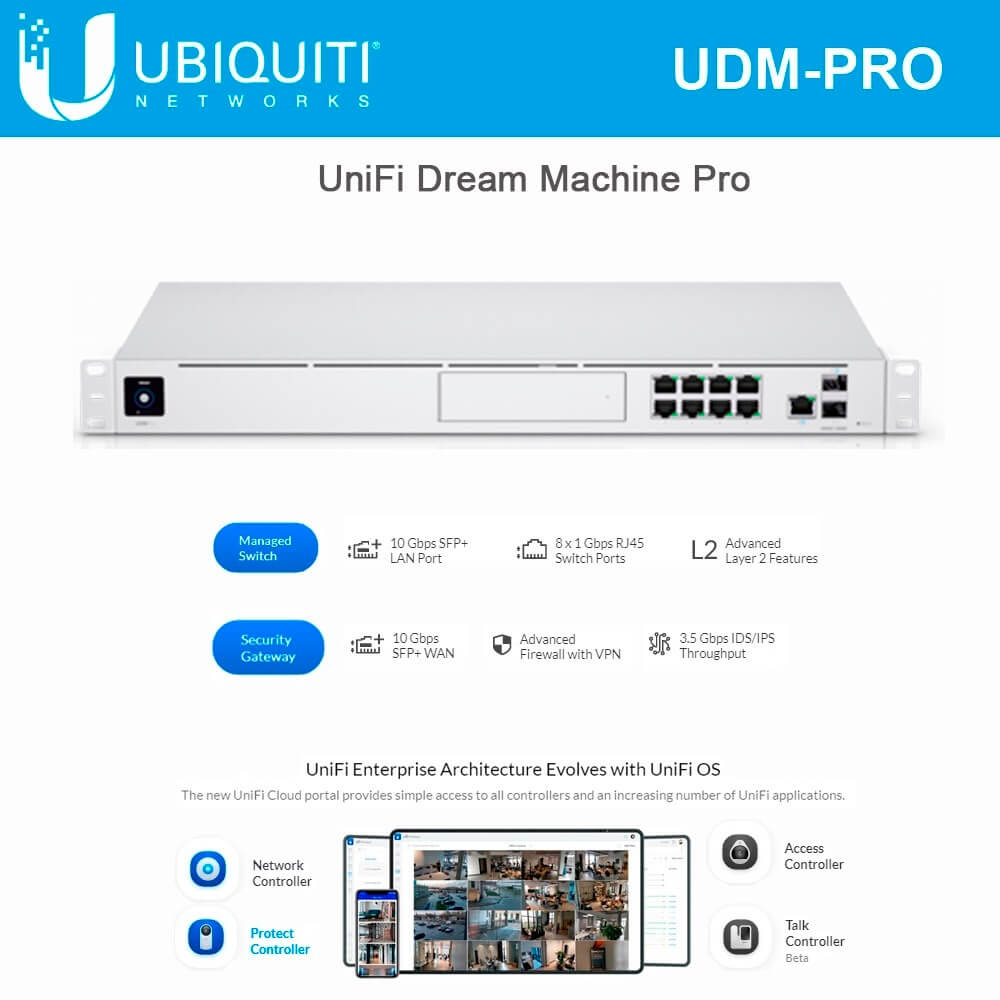
- What it does: It is your router, your security firewall, and the controller for your cameras and phones all in one.
- Where to put it: Install this on the 2nd Floor (the middle floor). This keeps your cable runs shorter and more efficient for the floors above and below.
Pro-Tip: Install the UDM-Pro inside a small 6U Wall-Mount Data Cabinet. This keeps the “brain” cool, dust-free, and locked away from unauthorized hands.
Eliminating Dead Zones: Wi-Fi 7 Deployment
Standard routers try to “blast” signal through walls. UniFi works differently by using multiple Access Points (APs) that work together as a single network.
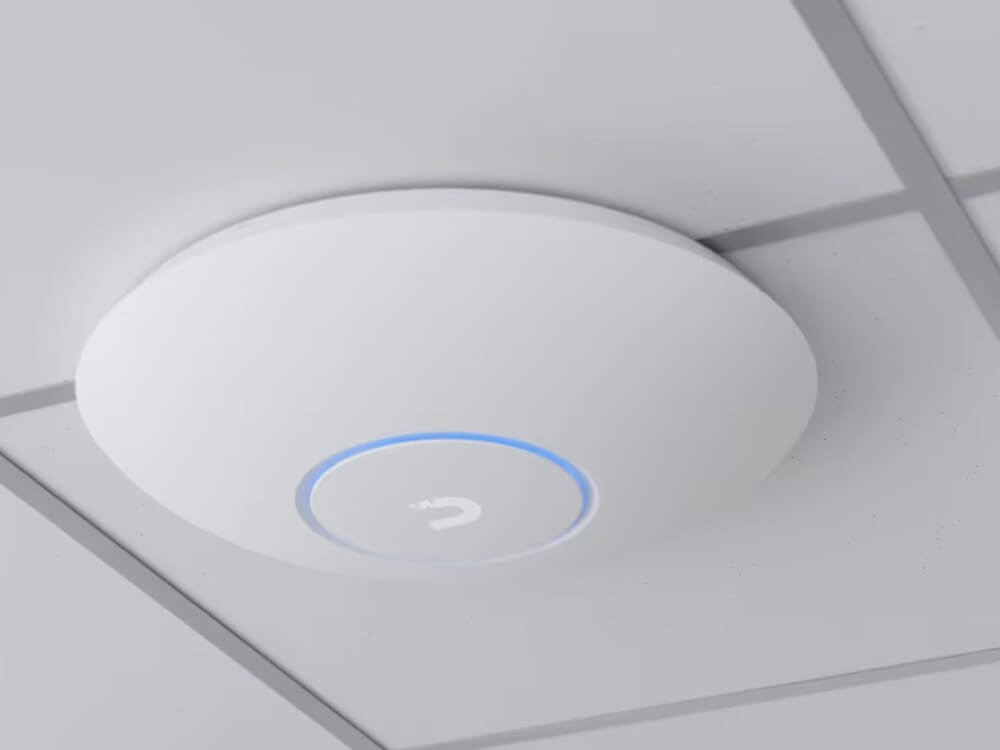
How many APs do you need?
In the Philippines, a good rule of thumb for concrete buildings is one AP for every 100 to 120 square meters.
- If your floor is 100sqm or less: 1 AP per floor is usually enough.
- If your floor is 200sqm+: You will likely need 2 APs per floor, placed at opposite ends.
The Strategy: The “Zig-Zag” Placement
Don’t stack your APs in the exact same spot on every floor. If the 1st-floor AP is at the front of the building, place the 2nd-floor AP in the middle, and the 3rd-floor AP at the back. This “Zig-Zag” creates a 3D mesh of coverage that penetrates floors more effectively.
Avoid “Wi-Fi Repeaters”: Never use cheap plug-in extenders. They cut your internet speed in half. UniFi APs use PoE (Power over Ethernet), meaning a single cable provides both the internet and the power.
UniFi Talk: The Modern PABX
Traditional PABX systems (the ones that let you transfer calls and have extensions) are often bulky and expensive to maintain. UniFi Talk turns your network into a phone system.
- Internal Calling: Every floor can have its own extension (e.g., 101, 201, 301). Staff can call each other across floors for free.
- The Smart Attendant: When a customer calls, they hear: “Welcome to New Global Enterprise. Press 1 for Sales, 2 for Support.” It makes a small business look like a major corporation.
The “Hybrid” Cost Hack for the Philippines
Since official Ubiquiti monthly phone plans aren’t available in the Philippines yet, we use a “Hybrid” setup to keep calls unlimited.
- For the Boss: Keep your traditional PLDT/Globe Cordless Phone on the desk for unlimited local calling.
- For the Office: Use VoIP.ms to power your UniFi Touch phones. You pay a few centavos per minute for outbound calls, but you get the professional features like call recording and the digital receptionist.
Estimated Bill of Materials (2026 Prices)
| Item | Recommendation | Qty | Est. Total (PHP) |
| Console | UniFi Dream Machine Pro | 1 | ₱33,100 |
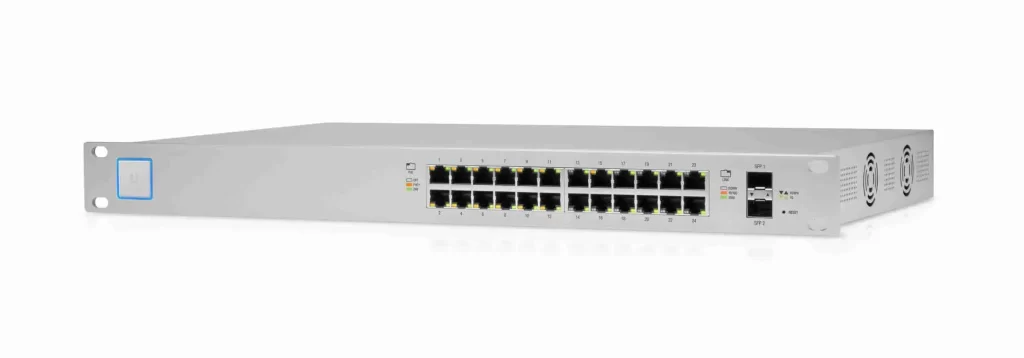
| Switch | UniFi 24-Port PoE Switch | 1 | ₱29,750 |
| Wi-Fi | UniFi U7-Pro (Wi-Fi 7) | 3 | ₱43,950 |
| Phones | UniFi Touch (Unlocked) | 2 | ₱25,000 |
| Cabinet | 6U Data Cabinet + Accessories | 1 | ₱5,500 |
| TOTAL | ₱137,300 |
Setting up a professional Call Flow (also known as an IVR or “Auto Attendant”) is the final step to making your 3-story office function like a corporate headquarters.
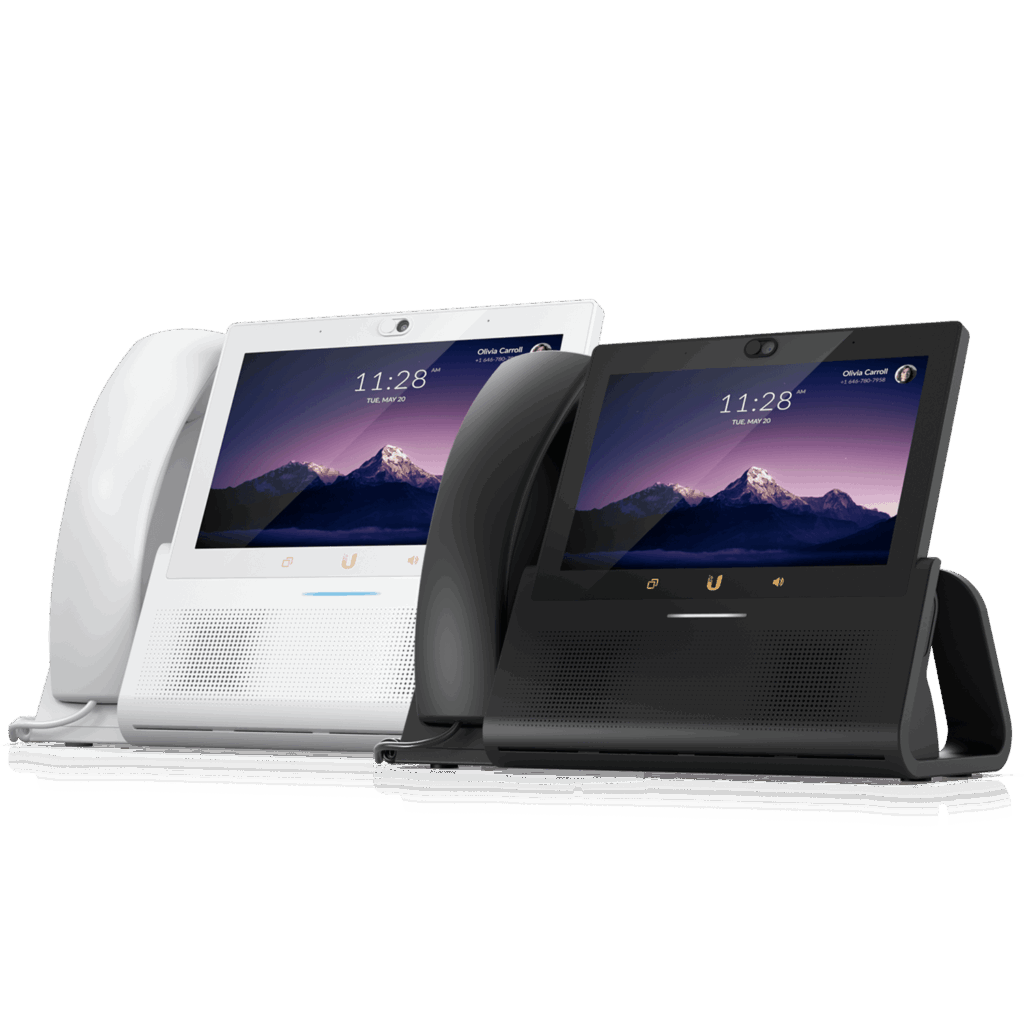
In UniFi Talk, this is managed under the “Engagement” tab. Here is a recommended structure designed for a Philippine business environment, balancing professional service with your “Hybrid” PLDT/Globe landline setup.
The “Professional PH Office” Call Flow
When a customer dials your VoIP.ms number, the UniFi system answers and follows this “tree” of logic:
Stage 1: The Welcome Greeting
“Thank you for calling [New Global Enterprise]. For English, press 1. Para sa Tagalog, pindutin ang 2.”
Pro-Tip: If you only need one language, simplify it: “Thank you for calling [Your Business Name]. If you know your party’s extension, you may dial it at any time. Otherwise, please listen to the following options.”
Stage 2: The Main Menu (Keypress Options)
| Keypress | Action | Destination |
| Press 1 | Ring Group | Sales Team (Rings all phones on the 1st floor) |
| Press 2 | User | Technical Support (Rings the Tech Lead’s desk on the 3rd floor) |
| Press 3 | Play Audio | Office Info (Plays a recording of your address and store hours) |
| Press 0 | User | Operator / Reception (Rings the main desk) |
Stage 3: The “No Answer” Fallback
If nobody picks up after 20 seconds, the call shouldn’t just drop.
- Option A: Redirect to the General Voicemail box.
- Option B: Use the “Global Contact” trick to forward the call to the boss’s mobile phone (Smart/Globe).
How to Configure this in UniFi Talk (Step-by-Step)
- Open UniFi Talk: Go to the Engagement tab and click “Add Smart Attendant.”
- Assign the Number: Select your VoIP.ms number as the “Inbound Number” for this attendant.
- Set Business Hours: (Optional) You can create a separate “After Hours” flow that immediately says: “We are currently closed. Please call our PLDT landline at [Your Number] or leave a voicemail.”
- Create the Menu:
- Click the “+” icon to add “Keypress Prompts.”
- For Press 1, select “Ring Phone(s)” and choose your Sales Group.
- For Press 2, select “Ring Phone(s)” and choose the Support User.
- Record the Audio: You can use “Text-to-Speech” (which sounds very professional in 2026), or record your own voice directly through one of the UniFi Touch phones.
The “Hybrid” Strategy Reminder
Incoming Call Costs: Remember that every call answered by this Smart Attendant via your VoIP.ms number will cost roughly ₱0.60 per minute.
Pro-Tip: Encourage long-term clients to call your PLDT Landline directly for long consultations, but keep the UniFi VoIP number on your website and business cards for that high-end first impression and automated routing.
Final Checklist for your 3-Story Building
- UDM-Pro is updated to the latest UniFi OS.
- VoIP.ms account is funded with at least $25.
- SIP ALG is disabled in your PLDT/Globe modem settings.
- Handsets are “Subscription Unlocked” models. These are a bit expensive since monthly subscription is not yet available in the Philippines.
The “After-Hours” Professional Script
The “After-Hours” script is crucial for a 3-story office because it manages client expectations when your staff is no longer on their respective floors. In the Philippines, where personal connection is highly valued, a polite and informative automated message goes a long way.
This script is designed to be clear, helpful, and culturally appropriate for a Philippine business.
*”Thank you for calling [New Global Enterprise]. Our office is currently closed. Our regular business hours are Monday through Friday, 9:00 AM to 6:00 PM.
For urgent matters, you may reach us via email at [company email] or visit our website at [company website]. Thank you and have a pleasant evening.”*
If you know your party’s extension, you may dial it now to leave a private voicemail. For general inquiries, please leave a message after the tone with your name and contact number, and we will get back to you on the next business day.
Technical Setup: The “Schedule” Logic
In UniFi Talk, you don’t need a separate “Night Mode” button. The system handles it automatically based on a schedule.
- Go to Settings: Inside the UniFi Talk app, navigate to Engagement > Smart Attendant.
- Enable Business Hours: Toggle the switch for “Business Hours.”
- Define Your Time: Set your 9:00 AM – 6:00 PM (or your specific hours) for each day of the week.
- The “Closed” Branch: You will now see two tabs in your Smart Attendant configuration: “Business Hours” and “After Hours.”
- In “Business Hours”: Use the main menu we designed earlier (Press 1 for Sales, etc.).
- In “After Hours”: Choose the “Play Audio” block and paste the script above into the Text-to-Speech generator.
Pro-Tip: The “Emergency Forward” Trick
If the “Boss” needs to be reachable 24/7 for emergencies:
- In the After Hours menu, add a prompt: “For emergencies only, press 9.”
- Set Press 9 to “Ring Phone” and select a Global Contact that you’ve created with the boss’s actual mobile number (Smart/Globe).
- Warning: Since this uses your VoIP.ms line to “bridge” to a mobile phone, you will be charged for the outbound leg of that call (approx. ₱5–₱8 per minute).