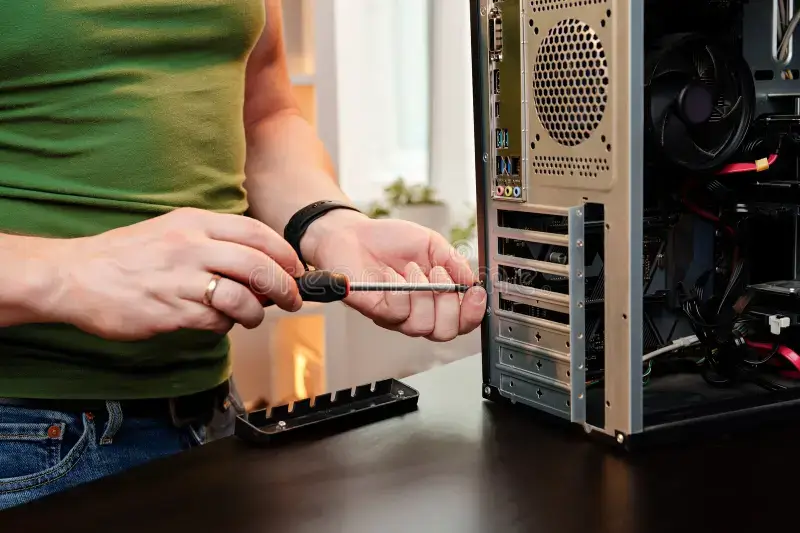
Your computer works hard every day, so regular care keeps it fast and reliable. Many performance problems come from neglect, not from old hardware. Therefore, simple maintenance habits make a big difference.
This guide focuses on PC maintenance tips and computer maintenance guide basics for everyday users. You do not need technical skills to follow these steps confidently. As a result, anyone can keep a computer running smoothly.
Moreover, regular maintenance helps extend your PC’s lifespan. It also reduces crashes, slowdowns, and storage issues. This article provides clear steps and printable checklists for easy reference.
Why Regular PC Maintenance Matters
Routine maintenance keeps your system responsive and dependable. Dust, outdated software, and clutter slow computers over time. Therefore, prevention works better than troubleshooting later.
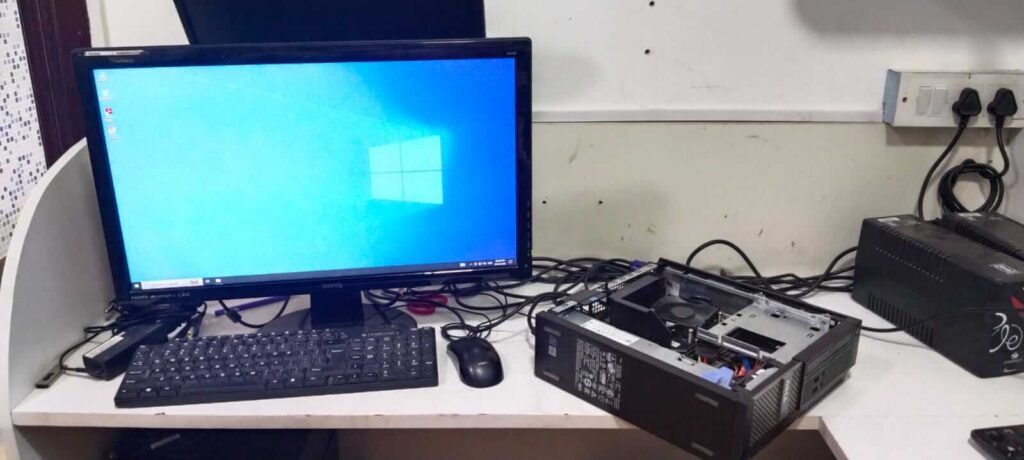
Additionally, maintenance improves security and stability. Updated systems resist malware and unexpected errors. As a result, your data stays safer.
Regular care also saves money in the long run. Well-maintained PCs last longer before replacement.
For general PC care advice, visit https://www.consumerreports.org/computers/how-to-maintain-your-computer-a2419318490/
Cleaning PC Hardware Safely (Step-by-Step)
Cleaning PC hardware improves airflow and prevents overheating. Dust buildup forces fans to work harder. Therefore, cleaning boosts performance and longevity.
First, shut down and unplug your computer completely. Then, move it to a well-ventilated area.
Use a soft microfiber cloth for surfaces.
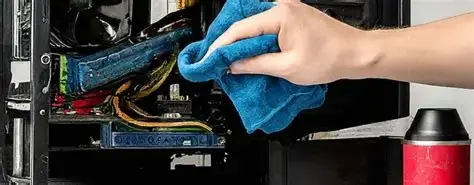
Next, use compressed air to remove dust from vents. Always spray short bursts at an angle.
Never use liquids inside the computer. Also, clean your keyboard and mouse regularly. Turn the keyboard upside down and gently tap it. For cleaning tips, see https://www.howtogeek.com/206164/how-to-clean-your-dirty-laptop/
Checklist: Hardware Cleaning
- Power off and unplug the PC
- Wipe screen and case with microfiber cloth
- Blow dust from vents using compressed air
- Clean keyboard and mouse
- Check cables and ports
Updating Drivers and Software Made Easy
Updating drivers keeps your hardware working properly. Outdated drivers often cause crashes or slow performance. Therefore, updates matter more than many users realize.
Windows users can rely on built-in update tools. Open Settings and check for updates regularly. This process installs most drivers automatically.
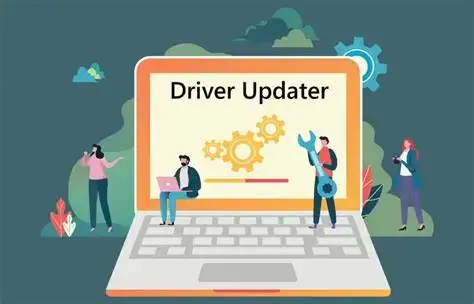
Additionally, major hardware brands provide update utilities. These tools simplify driver management.
For official guidance, visit https://support.microsoft.com/windows/update-drivers
Keeping apps updated also improves security. Updates fix bugs and close vulnerabilities. As a result, your system runs more smoothly.
Checklist: Updates
- Enable automatic system updates
- Check updates monthly
- Update antivirus software
- Restart after major updates
Managing Storage and Removing Clutter
Managing storage helps maintain fast performance. Full drives slow file access and system tasks. Therefore, free space matters.
Start by removing unused programs. Open your app list and uninstall what you no longer need. This step alone frees significant space.
Next, use built-in storage cleanup tools. They remove temporary files safely. For guidance, see https://support.microsoft.com/windows/free-up-drive-space
Also, move large files to external drives or cloud storage. Photos and videos consume space quickly. As a result, your main drive stays responsive.
Checklist: Storage Management
- Uninstall unused programs
- Delete temporary files
- Empty recycle bin
- Move large files to external storage
- Keep at least 20% free space
Simple Steps to Speed Up PC Performance
PC performance tips often involve small adjustments. Too many startup programs slow boot times. Therefore, reducing them helps immediately.
Open startup settings and disable unnecessary apps. Only keep essential programs enabled. This change improves startup speed noticeably.
Additionally, restart your PC weekly. Restarts clear memory and refresh processes. For beginner-friendly tips, visit https://www.pcmag.com/how-to/how-to-speed-up-your-pc
Avoid installing unknown software sources. Unnecessary tools often consume resources. As a result, performance remains stable.
Protecting Your PC from Common Problems
Basic security supports computer maintenance guide routines. Antivirus software should stay active and updated. Therefore, real-time protection remains essential.
Also, avoid suspicious email links and downloads. Many issues begin with unsafe clicks. Awareness prevents most infections.
Back up important files regularly. Use external drives or cloud services. For backup basics, visit https://www.backblaze.com/backup-tips
Backups ensure peace of mind during failures. They protect against accidental data loss.
Monthly PC Maintenance Routine
A monthly routine keeps maintenance manageable. Small steps prevent major problems later. Therefore, consistency matters more than effort.
Set a reminder once a month. Follow your checklists quickly. This habit saves time long-term.
Checklist: Monthly Maintenance
- Clean exterior and vents
- Check for system updates
- Run storage cleanup
- Review startup programs
- Back up important files
Conclusion and Final Thoughts
PC maintenance does not require technical expertise or expensive tools. Simple habits keep your computer running like new. As a result, you enjoy better performance and reliability.
Cleaning hardware, updating software, and managing storage create long-term benefits. These steps also reduce frustration and downtime. Consistency delivers the best results.
Which maintenance tip helped you the most today?
Share your experience in the comments and help other readers stay productive.