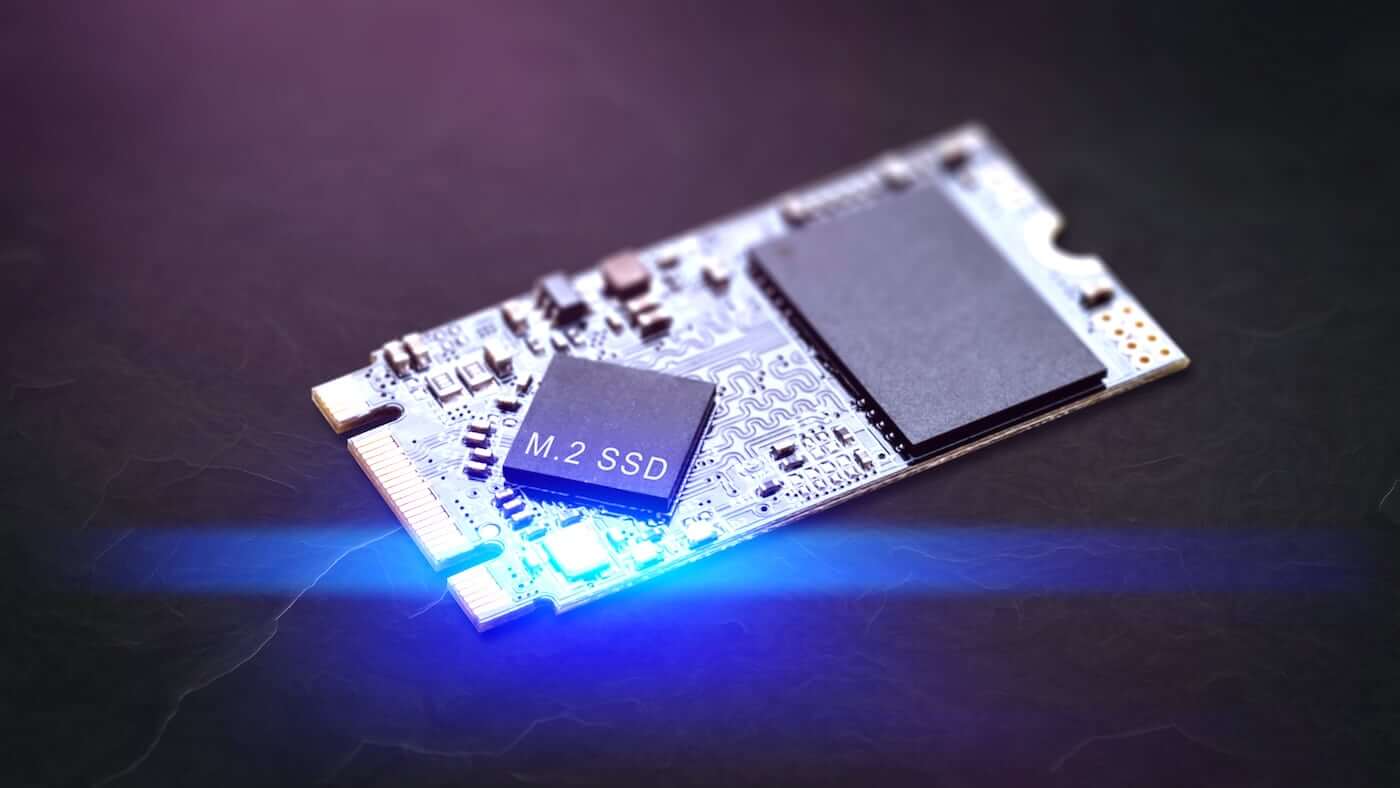
Why Your SSD Might Be Crawling
Solid State Drives (SSDs) are known for speed, but even they can slow down over time. If your system feels sluggish, don’t panic.
Many users overlook subtle causes like outdated firmware or improper settings. These issues can quietly throttle performance without warning.
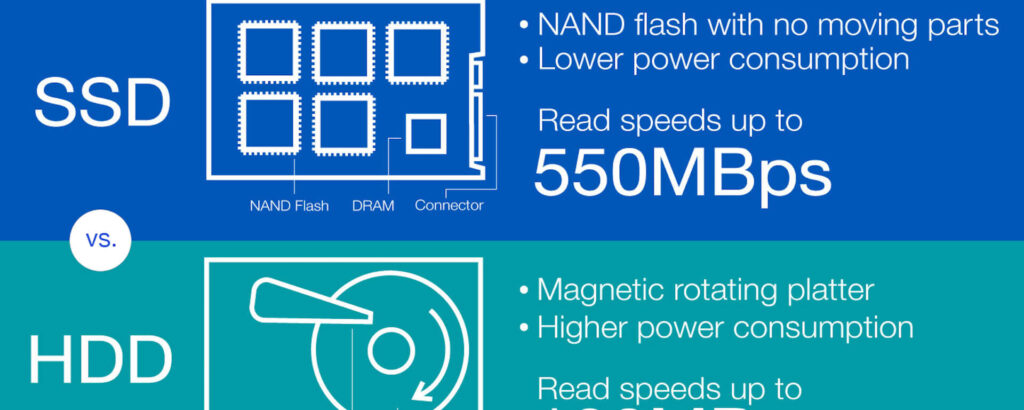
In this guide, we’ll explore five lesser-known but effective fixes. Whether you’re on Windows or macOS, these tips can help.
Let’s dive into how to restore blazing-fast SSD performance using smart tweaks and proven optimization strategies.
1. 🧠 Update SSD Firmware for Maximum Compatibility
Manufacturers often release firmware updates that fix bugs and improve speed. Yet, many users never install them.
Visit your SSD brand’s support page to check for updates. For example, Samsung Magician offers a simple tool for Samsung drives.
Updating firmware ensures your SSD works efficiently with your OS and hardware. It also improves compatibility with newer file systems.
2. 🧹 Disable Unnecessary Background Services
Background apps and services can hog disk access. This slows down read/write operations, especially on older systems.
Use Task Manager (Windows) or Activity Monitor (macOS) to identify resource-heavy processes. Disable or uninstall what you don’t need.
For Windows users, Black Viper’s service guide is a great resource to safely tweak services.
3. ⚙️ Enable TRIM Support
TRIM helps SSDs manage unused data blocks, keeping write speeds fast. Without it, your drive may degrade over time.
Windows 10 and 11 usually enable TRIM by default. To check, run this command in PowerShell:
powershell
fsutil behavior query DisableDeleteNotify
If the result is 0, TRIM is active. For macOS, TRIM is enabled on Apple SSDs but may need manual activation on third-party drives.
Learn more about TRIM from Intel’s SSD optimization guide.
4. 🧊 Avoid Overfilling Your SSD
SSDs slow down when nearly full. This happens because the controller struggles to find empty blocks for new data.
Keep at least 15–20% of your SSD free. Use built-in tools like Windows Storage Sense or macOS Storage Management.
For deeper insights, check Crucial’s SSD health tips.
5. 🔍 Switch to AHCI Mode in BIOS
Advanced Host Controller Interface (AHCI) improves SSD performance by enabling native command queuing.
If your system uses IDE mode, it may bottleneck your SSD. You can switch to AHCI via BIOS settings.
Before changing modes, back up your data. Improper changes can cause boot issues. Tom’s Hardware offers a detailed guide on safe BIOS tweaks.
Final Thoughts: Speed Is Just a Fix Away
SSDs are fast, but they need care to stay that way. These five hidden fixes can make a noticeable difference.
Try them one by one and monitor your system’s performance. You’ll likely see faster boot times and snappier apps.
Have you tried any of these tips? Drop a comment below and share your experience with fellow tech enthusiasts!