
Microsoft Excel remains one of the most powerful tools for data analysis, reporting, and business automation. In 2025, it becomes even more efficient with integrated AI-powered Excel features. Whether you’re a beginner or a pro, these tools help you automate tasks, visualize data, and save valuable time.
Today, Excel uses artificial intelligence not just to suggest formulas but also to organize, interpret, and analyze large data sets. With functions like Ideas in Excel and Copilot in Microsoft 365, users can now interact with data using natural language, automating processes that once required complex formulas or macros.
1. Understand What Excel AI Can Do for You
The AI in Excel isn’t just smart—it’s proactive. It now understands patterns, trends, and common questions you might ask about your data.
For instance, the Ideas feature helps you gain quick insights without using pivot tables or charts manually. It instantly provides summaries, trends, and charts based on your selected data. This feature is ideal for users who need quick overviews for reports or decision-making.
Additionally, Excel’s built-in machine learning now predicts what you might want to do next, such as suggesting better formulas or spotting outliers.
2. Use Excel Copilot to Automate Complex Tasks
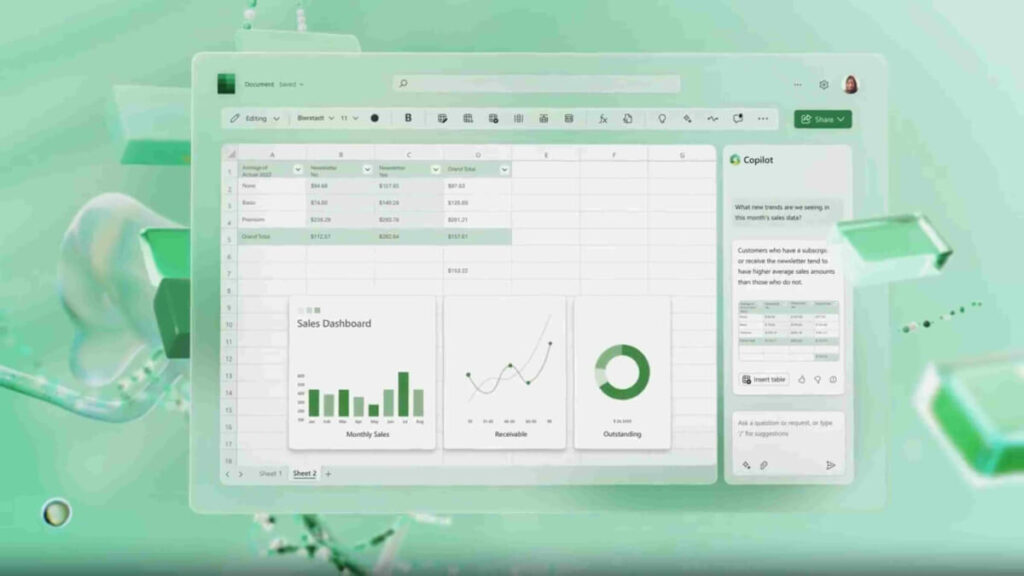
One of the most talked-about innovations is Microsoft 365 Copilot, which now works seamlessly in Excel. It lets you ask questions like “Summarize sales by region” or “Highlight the top 5 performing products.”
Using natural language, you can generate pivot tables, filter data, and even create custom dashboards—all without writing a single formula. Copilot reduces the learning curve, especially for users who struggle with Excel’s advanced functions.
Not only does it increase productivity, but it also ensures accuracy by relying on structured AI models trained on enterprise-grade data practices.
3. Automate Data Cleaning with Power Query AI Enhancements
Another impressive AI-driven feature is Power Query, which now includes smarter transformations powered by AI.
Power Query simplifies the process of cleaning and preparing large datasets. You can now automate repetitive cleaning tasks like removing duplicates, splitting columns, or replacing errors. Moreover, the AI suggests column headers, formatting rules, and even predictive data types based on your content.

With a few clicks, your messy data becomes structured and ready for reporting, saving you hours of manual work.
4. Predict Trends with Forecast Sheets and Machine Learning Models
In 2025, Excel’s forecasting tools have evolved with enhanced AI and Azure Machine Learning integrations.
The Forecast Sheet feature helps you predict future trends using historical data with just one click. It’s useful for sales, budgeting, inventory, and more. The tool now considers seasonality and anomalies more intelligently.
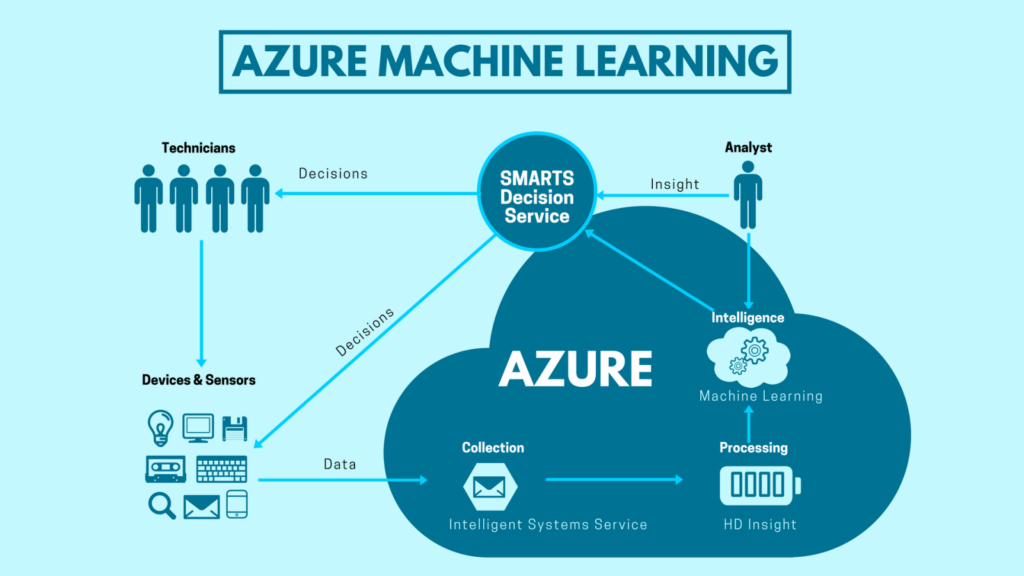
Advanced users can also link Excel data to Azure ML to create custom prediction models. This makes Excel a powerful front-end for AI-powered business intelligence.
5. Build Smart Dashboards with Recommended Charts and Insights
Creating dynamic dashboards is easier than ever thanks to AI. Excel now recommends the most appropriate charts based on your data structure and purpose.
The Recommended Charts feature analyzes your data layout and suggests the best visuals to highlight key metrics. You don’t have to be a designer to create impressive reports anymore.
Combine this with PivotTables, Slicers, and Timelines for interactive dashboards that update in real-time. These are perfect for presentations or team meetings.
6. Streamline Collaboration and Sharing with AI Suggestions
Excel AI doesn’t just work on your spreadsheet—it also helps teams work better together. Smart collaboration features suggest sharing options, comments, and access levels.
Excel for the Web now supports real-time co-authoring with built-in AI prompts. These suggestions help manage permissions or recommend sections for review. If you’re part of a Microsoft 365 business plan, you can even automate approval workflows with Excel + Power Automate.
This ensures that every team member sees relevant data and contributes effectively without version conflicts.
7. Leverage Excel Add-ins with AI Capabilities
Beyond native tools, Excel supports third-party add-ins that use AI to enhance functionality. For example, DataRobot and Zebra BI offer add-ins for predictive modeling and business dashboards.
These tools integrate directly into Excel’s ribbon and provide AI-based features like data visualization, anomaly detection, and regression analysis. Explore the Microsoft AppSource for more AI tools tailored to your industry.
With these add-ins, you can extend Excel’s power beyond expectations without switching to other platforms.
Final Thoughts
AI has transformed Microsoft Excel from a spreadsheet tool into an intelligent assistant that understands your needs and automates your tasks. With Excel AI in 2025, you no longer need to memorize complex formulas or spend hours on data entry. Let AI do the heavy lifting while you focus on making decisions that matter.
Have you tried any of Excel’s AI features? Share your thoughts, experiences, or favorite tips in the comments below!