Slow internet at home is frustrating, especially when remote work, streaming, and smart devices rely on strong, stable connections. In 2025, with more people using bandwidth-heavy apps like video conferencing, cloud storage, and 4K streaming, optimizing your Wi-Fi performance and internet speed is more important than ever.
The good news is that you don’t need to upgrade to an expensive plan or buy new equipment right away. With the right tweaks and settings, you can noticeably improve your network speed, signal strength, and consistency. In this guide, we’ll show you step-by-step how to enhance your connection and boost your online experience.
1. Test Your Internet Speed First
Before making changes, test your current internet speed to understand what you’re working with.
Visit a reliable speed test tool like Speedtest.net or Fast.com to measure download, upload, and ping times. Compare the results with your subscribed plan. If you’re getting much less than expected, it’s time to troubleshoot.
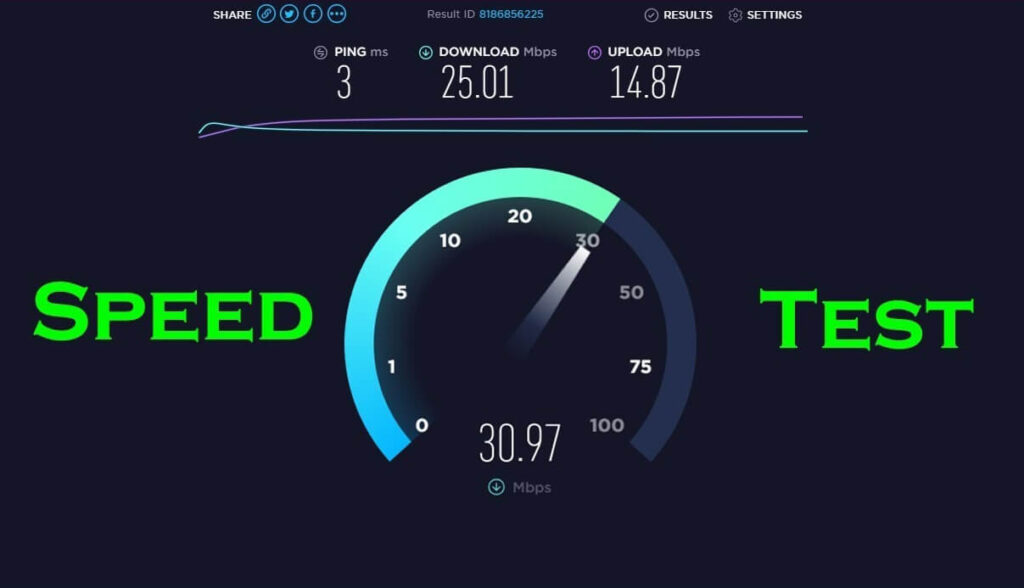
Keep a record of these tests throughout the day to identify fluctuations caused by network congestion or hardware limitations.
2. Reposition Your Router for Optimal Signal
Your router’s location plays a huge role in signal strength. Walls, metal objects, and even microwaves can block or weaken Wi-Fi signals.
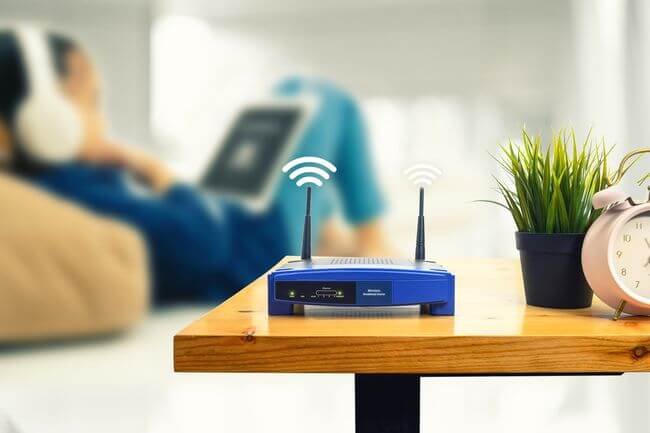
Place your router in a central, elevated area with minimal obstructions. Avoid hiding it behind furniture or inside cabinets. Use tools like NetSpot to map signal strength throughout your home and find dead zones.
If possible, connect devices like TVs or gaming consoles via Ethernet for a faster, more stable connection.
3. Update Your Router Firmware
Router manufacturers release firmware updates that fix bugs, enhance performance, and patch security issues.
Log in to your router’s settings (usually via 192.168.1.1 or 192.168.0.1 in your browser) and check for updates. Refer to your brand’s support page, such as TP-Link or Netgear, for update instructions.
If your router hasn’t had updates in years, consider replacing it with a newer model that supports Wi-Fi 6 or Wi-Fi 6E.
4. Change Your Wi-Fi Channel or Frequency Band
Wi-Fi interference from neighboring networks can slow your internet down, especially in apartment buildings.
Use a Wi-Fi analyzer app like WiFi Analyzer for Android or NetSpot for Mac to find less crowded channels. Then log into your router and switch to the least congested channel.
Also, switch devices to the 5 GHz band instead of 2.4 GHz for better speed and less interference—just make sure your router supports dual-band functionality.
5. Limit Background Devices and Bandwidth Hogs
Many smart home gadgets, phones, and PCs run background updates, backups, or uploads that quietly eat up your bandwidth.
Check connected devices in your router’s admin page. Disconnect those not in use or set bandwidth limits via Quality of Service (QoS) features. Learn more about configuring QoS from this TP-Link guide.
Also, pause cloud sync services like OneDrive or Google Drive when using high-bandwidth apps like video calls or online gaming.
6. Secure Your Wi-Fi Network from Unauthorized Users
Unwanted users can slow your connection and expose you to risks. Always protect your network with a strong WPA3 password.
Avoid using outdated WEP or WPA encryption, as these are easily cracked. Update your network name (SSID) and turn off SSID broadcasting if you want extra privacy. For more security settings, refer to Cybersecurity & Infrastructure Security Agency (CISA).
Changing your password regularly ensures that freeloaders or former guests don’t consume your bandwidth unnoticed.
7. Upgrade Your Modem or Router if Necessary
If your hardware is more than 4–5 years old, it might not keep up with modern internet demands. Outdated routers can bottleneck high-speed plans.
Consider upgrading to a Wi-Fi 6 or mesh system for better performance. Mesh networks like Google Nest WiFi or Eero provide whole-home coverage and automatic updates.
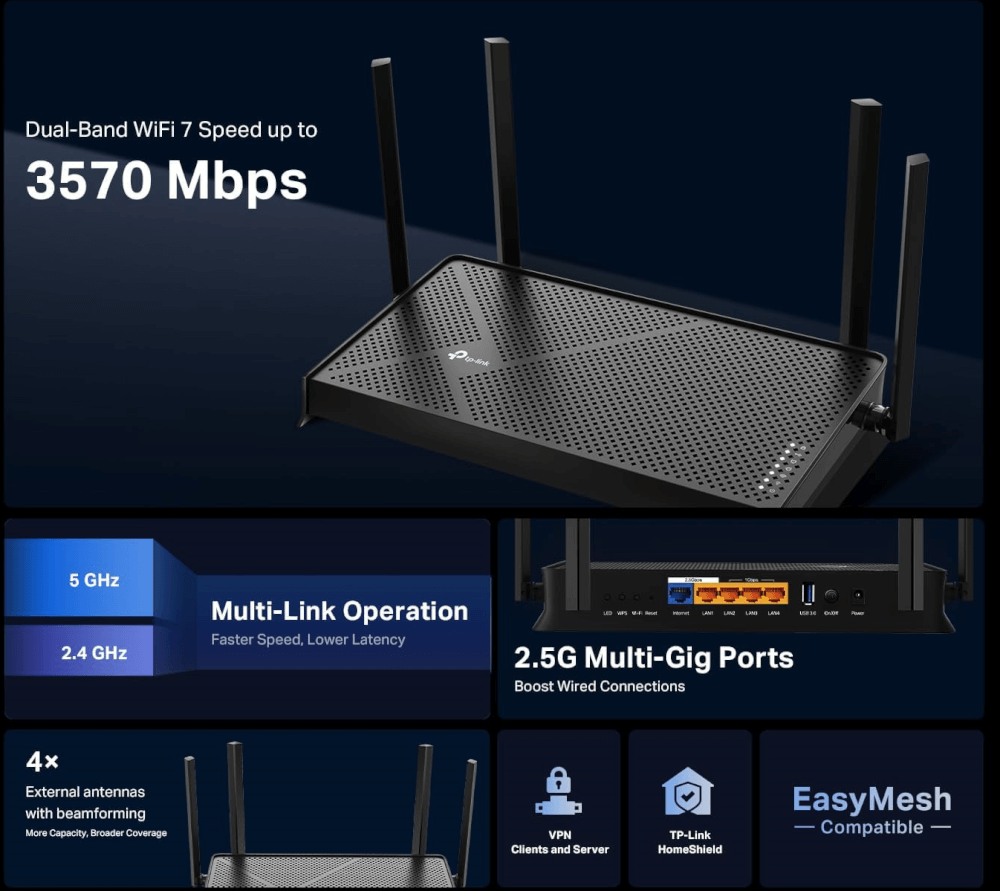
Before buying, verify compatibility with your ISP. Use this modem compatibility tool from Xfinity if you’re a Comcast user.
8. Schedule Reboots and Use Smart Management Tools
Rebooting your router can solve many connection problems. Set a schedule to reboot it weekly.
Use smart router management apps like Linksys Smart Wi-Fi, TP-Link Tether, or Netgear Nighthawk to manage settings, block devices, or prioritize traffic remotely.
Automating reboots or diagnostics saves you from repeated manual troubleshooting and keeps performance consistent.
9. Consider Switching ISPs or Upgrading Your Plan
If you’ve tried all these fixes and speeds are still poor, your internet service provider (ISP) might be the issue.
Contact your ISP to check for service issues or ask about better plans. Sometimes, newer fiber or 5G internet plans are available in your area without your knowledge.
Compare ISPs using BroadbandNow or HighSpeedInternet.com to find faster, more reliable options.
Final Thoughts
Improving your home internet speed in 2025 doesn’t have to be complicated or expensive. From repositioning your router to securing your network, small steps make a big difference. These proven tips can help you get the most out of your connection for work, play, and everything in between.
Have any tips or tricks that worked for you? Share them in the comments below and help others get connected faster!