Smartphones have become our digital lifelines. They store passwords, emails, photos, bank apps, and even our daily habits. Unfortunately, hackers know this too. In 2025, smartphone security is more critical than ever. From data theft to remote surveillance, mobile cyberattacks are increasing at an alarming rate.
Protecting your device doesn’t require expensive tools or technical expertise. By enabling the right security settings and staying vigilant, you can block most common attacks. Whether you use Android or iOS, this guide walks you through mobile phone security settings that help safeguard your personal data and identity.
1. Always Keep Your Phone Updated
Software updates often include critical security patches. Hackers exploit known vulnerabilities that outdated systems leave open.
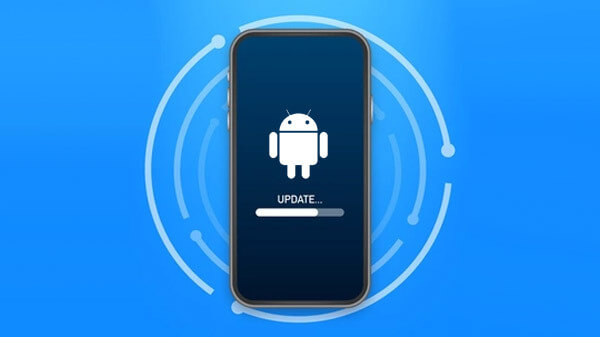
Go to your phone’s settings and check for updates regularly. Enable automatic updates to receive new patches without delay. For Android users, go to Settings > Software Update. For iOS users, go to Settings > General > Software Update.
Learn why updates matter from Google’s security page and Apple’s iOS update documentation.
2. Enable Biometric Lock and Strong Passcodes
Use biometric locks such as fingerprint or facial recognition whenever possible. These features are harder to bypass than PINs or patterns.
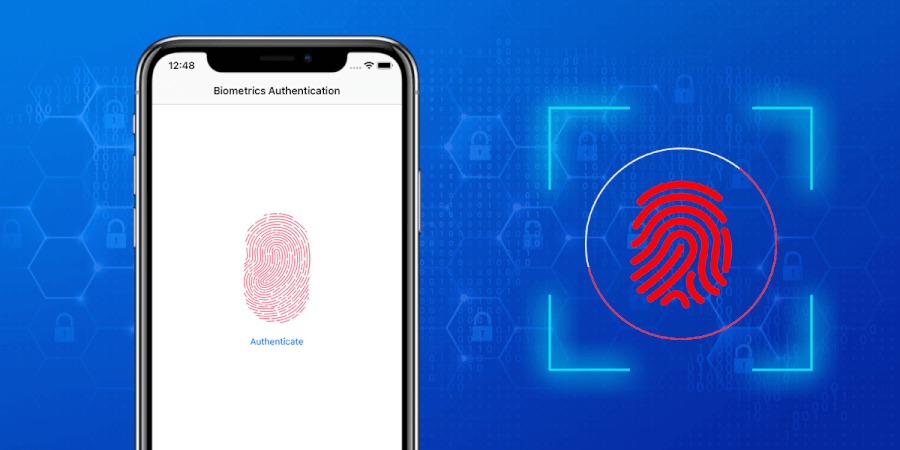
Also, replace weak PINs like “1234” with longer, alphanumeric passcodes. On iPhones, go to Face ID & Passcode. On Android, check Security > Screen Lock. Combining biometric and passcode protection doubles your defense.
3. Turn On Two-Factor Authentication for Apps
Two-factor authentication (2FA) adds an extra layer of security to your accounts. Even if your password is stolen, your account stays protected.
Enable 2FA on your email, banking, and cloud apps. Use apps like Google Authenticator or Authy for secure code generation. Visit your account settings in each app or website to turn it on.
4. Disable Bluetooth, Wi-Fi, and NFC When Not in Use
Hackers often exploit idle wireless signals to access your device. Keep your Bluetooth, NFC, and Wi-Fi turned off when not actively used.
This not only conserves battery but also reduces your attack surface. You can disable these features from the quick settings menu or your phone’s control panel.
For more insight, review this Android Bluetooth security guide and Apple’s NFC overview.
5. Review App Permissions Regularly
Many apps request more permissions than they need. Some can access your location, contacts, or microphone unnecessarily.
Audit your app permissions monthly:
- On iOS: Settings > Privacy & Security > App Privacy Report
- On Android: Settings > Privacy > Permission Manager
Remove access for apps that don’t need certain data. This minimizes potential leaks and reduces your risk if an app gets compromised. Read more on Google’s app permissions guide and Apple’s privacy features.
6. Use a Trusted Mobile Security App
Antivirus tools are no longer just for PCs. Install a reputable mobile security app to scan for malware, phishing links, and unsafe apps.
Top-rated options in 2025 include:
These apps provide real-time protection, anti-theft tools, and even privacy audits.
7. Activate Find My Device and Remote Wipe
If your phone is lost or stolen, Find My Device lets you track and wipe your data remotely.
- Android: Settings > Security > Find My Device or visit Find My Device by Google
- iPhone: Settings > [Your Name] > Find My > Find My iPhone or go to iCloud Find
Remote wiping helps protect your data even if someone gains physical access to your phone.
8. Avoid Public Wi-Fi or Use a VPN
Public Wi-Fi is convenient but risky. Hackers can set up fake hotspots to intercept your data.
If you must connect, use a VPN (Virtual Private Network). It encrypts your internet traffic and protects your privacy. Popular VPNs include:



Avoid logging into sensitive accounts when on public networks, even with a VPN.
9. Turn Off Ad and App Tracking
Limit how apps and advertisers track your behavior. Disable ad personalization and app tracking on your phone.
- iOS: Settings > Privacy & Security > Tracking > Disable “Allow Apps to Request to Track”
- Android: Settings > Privacy > Ads > Turn off “Ad Personalization”
Reducing tracking not only improves privacy but also lowers the chances of falling for targeted phishing.
10. Be Careful with Links and Downloads
Many cyberattacks start with a malicious link in an email or SMS. Always double-check URLs and app sources.
Avoid downloading apps from outside official stores unless you fully trust the source. Also, don’t click links from unknown senders. When in doubt, scan links using VirusTotal.
Final Thoughts
Your smartphone holds more sensitive data than most laptops. Taking just a few minutes to enable these security settings can stop hackers in their tracks. You don’t need to be an expert—just be proactive.
Have you tried any of these tips? Got a suggestion to add? Share your thoughts in the comments and help others secure their devices too!