
Running Windows 11 on a Mac has never been easier, thanks to advanced virtualization tools. Whether you’re a developer, a gamer, or simply need a Windows-only app, virtualization bridges the gap between macOS and Windows. Instead of dual-booting or partitioning your hard drive, you can install Windows 11 inside macOS using popular virtualization software.
With tools like Parallels Desktop and VMware Fusion, you can switch between operating systems seamlessly. These platforms are designed to run Windows 11 efficiently on Intel and Apple Silicon Macs, making the experience smooth and productive. If you’re looking to test apps, use Microsoft Office features exclusive to Windows, or play Windows-only games, this guide will walk you through the setup from start to finish.
1. Choose the Right Virtualization Software for Mac
Several virtualization platforms are available for macOS in 2025. The most popular options are:
- Parallels Desktop: Fully optimized for macOS, including M1 and M2 chips. It offers seamless Windows integration.
- VMware Fusion: A powerful and flexible virtualization platform with wide support for multiple OS types.
- UTM: A free, open-source solution ideal for advanced users and experimental setups.
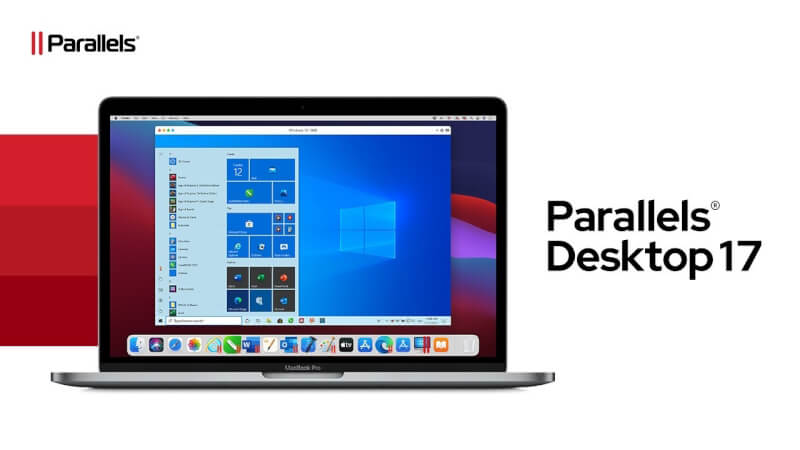
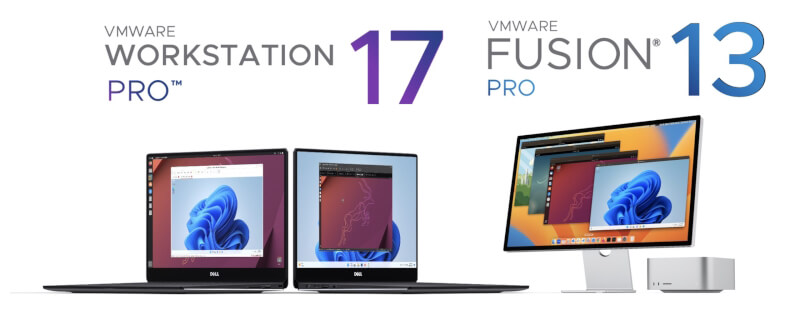
Parallels is the most user-friendly and offers support for DirectX and TPM 2.0, which are required by Windows 11. VMware Fusion is slightly more technical but highly customizable. UTM is a great free option but lacks performance for heavy applications.
2. Download a Windows 11 ISO File
Before installing, you need a copy of Windows 11.
- Visit the official Microsoft Windows 11 download page.
- Choose Download Windows 11 Disk Image (ISO) and select the version that fits your needs.
- Save the ISO file to your Mac.
Note that Windows 11 requires TPM 2.0 and UEFI boot mode, both of which are supported by modern virtualization tools. If you’re using Apple Silicon, make sure to select the ARM-based version where applicable.
3. Install Your Virtualization Tool and Create a New VM
For Parallels Desktop:
- Download and install Parallels Desktop for Mac.
- Open Parallels and click Create New.
- Select Install Windows or another OS from a DVD or image file.
- Drag and drop your downloaded Windows 11 ISO into the setup window.
- Follow the prompts to allocate CPU cores, RAM, and disk space.
Parallels automatically configures the TPM module required for Windows 11 installation. You can start using Windows within minutes of setup.
For VMware Fusion:
- Download VMware Fusion and install it.
- Open the app and click Create a New Virtual Machine.
- Browse to your Windows 11 ISO file and proceed.
- Allocate resources and ensure UEFI is enabled in the firmware settings.
- Complete the setup to install Windows.
For more advanced help, refer to the VMware Fusion Docs.
4. Configure Windows Settings and Install Updates
After installing Windows, spend a few minutes configuring your system.
- Connect your Microsoft account to sync settings and access the Microsoft Store.
- Run Windows Update from Settings > Windows Update to install the latest drivers and patches.
- Activate Windows using a valid license key or digital entitlement.
- Install Parallels Tools or VMware Tools to enable features like clipboard sharing, better display support, and performance optimization.
By completing these steps, your virtual Windows system will feel nearly as fast as a native installation.
5. Integrate macOS and Windows Seamlessly
Virtualization software today offers deep integration between macOS and Windows.
- You can drag and drop files between desktops.
- Use shared folders to access macOS files from Windows.
- Run Windows apps in Coherence Mode (Parallels) or Unity Mode (VMware), blending them with macOS apps.
- Map printers, external drives, and webcams between systems.
You can also customize your VM settings anytime to optimize performance or enable advanced networking and hardware passthrough. Visit the Parallels features page for additional tips.
6. Tips for Optimizing Performance
To improve the experience of running Windows 11 on a Mac:
- Allocate at least 4GB of RAM and 2 CPU cores to the VM.
- Use SSD storage for faster read/write speeds.
- Disable visual effects in Windows under System > Performance Settings.
- Limit startup apps to reduce boot time.
Additionally, use virtualization software updates to get compatibility fixes. Both Parallels and VMware regularly release patches for macOS versions and Apple Silicon support.
Final Thoughts
Running Windows 11 on your Mac in 2025 is easier and more efficient than ever before. Whether you’re testing apps, managing Office tasks, or playing Windows-only games, virtualization gives you the best of both worlds—macOS stability and Windows flexibility.
Have you tried setting up Windows on your Mac? Got questions or tips? Drop them in the comments below—we’d love to hear your experience and help you along the way!