Bluetooth technology makes it easy to connect wireless devices like headphones, keyboards, mice, and printers to your Windows PC. However, issues like Bluetooth not working or pairing problems can disrupt your workflow and cause frustration. Whether you’re using Windows 11 or Windows 10, these problems are common but fixable.
In this guide, we’ll walk through practical steps to fix common Bluetooth connection issues quickly. These include checking settings, updating drivers, running troubleshooters, and more. You don’t need to be tech-savvy—just follow the steps and you’ll likely solve the problem in minutes.
1. Check That Bluetooth Is Enabled on Your PC
Sometimes, the simplest solution works best. Start by checking if Bluetooth is actually turned on.
- On Windows 11: Go to Settings > Bluetooth & devices and ensure Bluetooth is switched on.
- On Windows 10: Open Settings > Devices > Bluetooth & other devices to check the toggle.
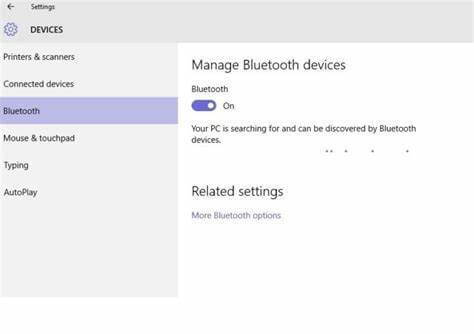
If the Bluetooth toggle is missing, your device may not support it or the driver isn’t installed. Learn more from Microsoft’s Bluetooth support.
2. Restart Bluetooth and Your Devices
Restarting can fix temporary glitches. First, toggle Bluetooth off and on again in your system settings. Then, restart your computer.
Also, power cycle the device you’re trying to pair. For example, turn off your Bluetooth speaker, wait 10 seconds, and turn it back on. Many devices cache previous connections and a reset clears that.
Still having issues? Try removing the device and reconnecting it via Bluetooth settings > Devices > Remove device, then re-pair it.
3. Update or Reinstall Bluetooth Drivers
Outdated or corrupt drivers are a major cause of Bluetooth problems. Here’s how to update them:
- Right-click the Start menu and open Device Manager.
- Expand Bluetooth and right-click your Bluetooth adapter.
- Choose Update driver > Search automatically for drivers.
If that doesn’t help, uninstall the device, restart your PC, and Windows will reinstall it automatically. For deeper troubleshooting, check the manufacturer’s site like Intel’s Driver & Support Assistant or Dell Support.
4. Run the Windows Bluetooth Troubleshooter
Both Windows 10 and 11 include built-in troubleshooters. These scan and fix known problems automatically.
- On Windows 11: Go to Settings > System > Troubleshoot > Other troubleshooters, then click Run beside Bluetooth.
- On Windows 10: Navigate to Settings > Update & Security > Troubleshoot > Additional troubleshooters > Bluetooth.
The troubleshooter checks settings, services, and driver conflicts. This is often enough to restore functionality without technical steps. Read more on Windows troubleshooting tools.
5. Restart the Bluetooth Support Service
Bluetooth relies on background services. If one fails, connections may not work. Restart the service manually:
- Press Win + R, type
services.msc, and press Enter. - Locate Bluetooth Support Service, right-click, and select Restart.
- If disabled, double-click it, set Startup type to Automatic, and click Start.
This ensures Bluetooth runs correctly in the background. Check this setting if Bluetooth is intermittently disconnecting or won’t re-enable.
6. Check for Windows Updates
Microsoft often releases bug fixes and driver updates through Windows Update. So it’s important to stay updated.
Go to Settings > Windows Update and click Check for updates. Install any available updates and restart your PC. This can resolve compatibility problems with Bluetooth devices.
Some updates include firmware fixes for Bluetooth adapters, especially on newer Windows 11 systems. Learn more at Windows Update support.
7. Use a USB Bluetooth Adapter as a Last Resort
If your built-in Bluetooth fails completely, consider using a USB Bluetooth dongle as a backup. These plug-and-play devices bypass internal hardware and often offer better stability.
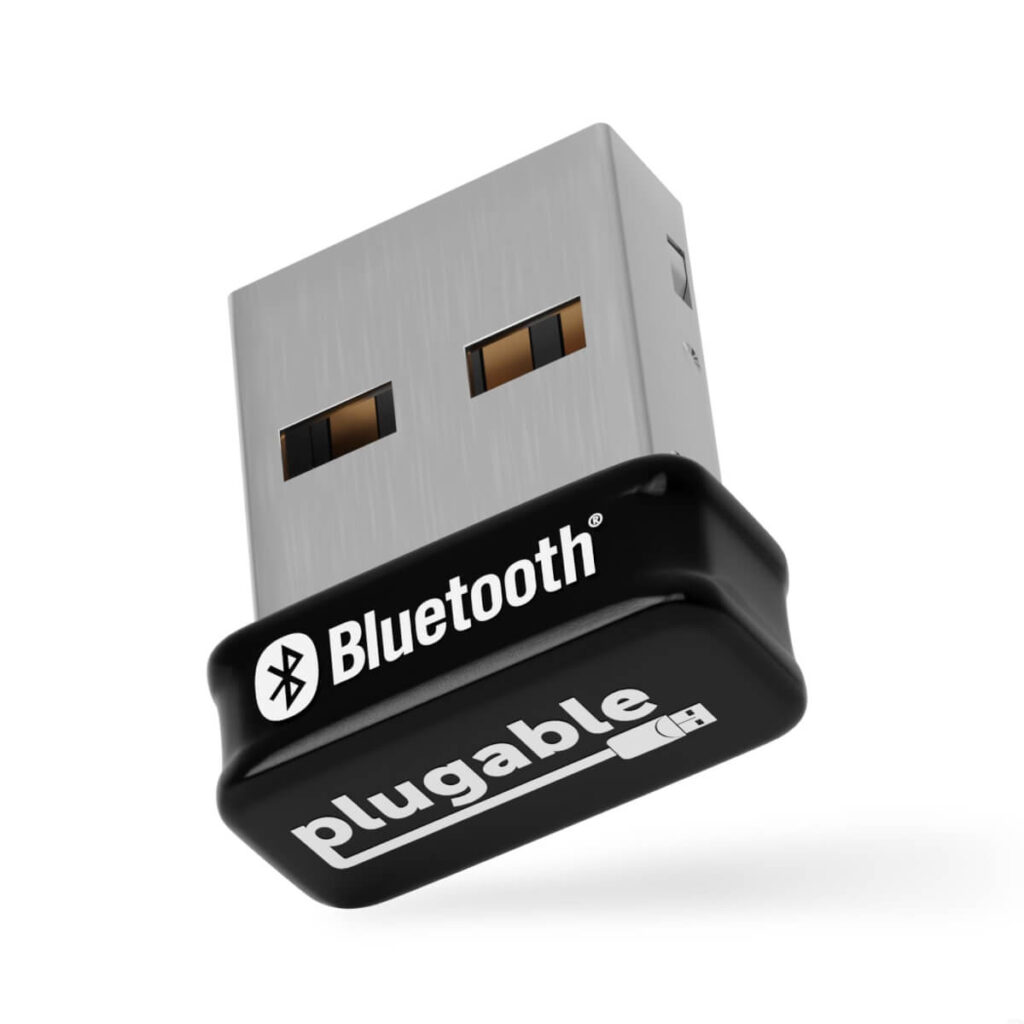
Many USB adapters work out of the box with Windows 10 and 11. Just insert it, wait for Windows to detect it, and you’re good to go. It’s an affordable fix when onboard Bluetooth won’t cooperate.
Final Thoughts
Bluetooth issues on Windows 10 and 11 are frustrating but usually easy to fix with the right steps. Start simple—restart devices, check settings, or run a troubleshooter. Most of the time, you’ll solve the problem in minutes.
Did these fixes work for you? Have another trick to share? Drop your experience in the comments below and help others in the community!