Linux has become a powerful, flexible, and user-friendly operating system suitable for everything from everyday use to development and cybersecurity. If you’re new to Linux or simply curious, running it from a USB drive is one of the easiest ways to try it without affecting your main system.
Installing Linux on a USB lets you test Linux distributions like Ubuntu or Fedora on any computer. Whether you want portability, privacy, or just to explore, this guide walks you through the steps. You don’t need to erase your hard drive or dual-boot—just a USB stick, a few tools, and some basic knowledge.
1. Why Run Linux from a USB Drive?
Running Linux on a USB offers several advantages. It allows you to test Linux before installing it on your PC. You can also carry a fully functional OS in your pocket, including your apps and files.
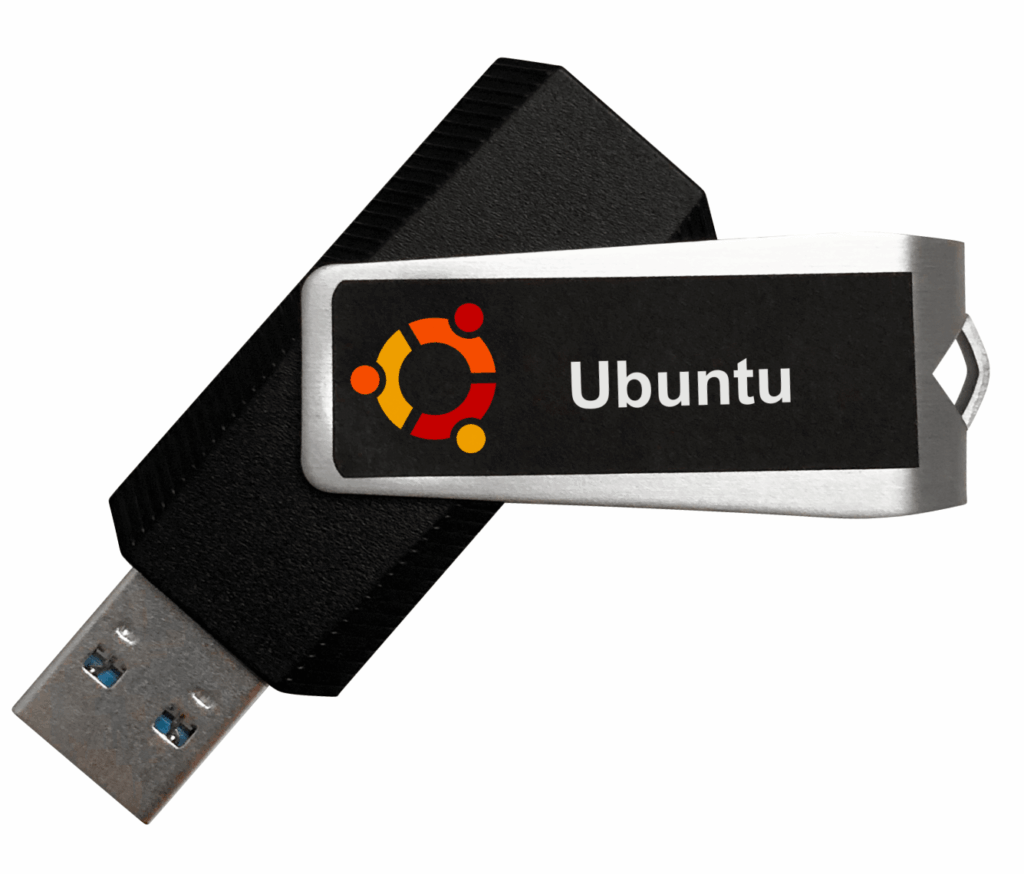
Unlike a live CD, a persistent Linux USB drive saves your data across reboots. This means you can customize settings, install software, and return to them later. Additionally, Linux on a USB is helpful for system recovery, privacy, or using shared computers securely.
To learn more about why Linux is great for beginners, visit the Linux Foundation.
2. What You Need Before You Begin
Before installing Linux on a USB, gather the following:
- A USB drive (at least 8GB; 16GB or more recommended for persistence)
- A computer with internet access
- A Linux distribution ISO file (e.g., Ubuntu, Linux Mint, or Fedora)
- A USB flashing tool like Rufus, BalenaEtcher, or UNetbootin
Optionally, use a secondary USB for creating a fully persistent setup. This ensures your files and changes are saved between uses.
3. Download Your Preferred Linux Distribution
There are many Linux distributions. Beginners usually start with:
- Ubuntu – Clean, stable, and widely supported
- Linux Mint – Windows-like interface, beginner-friendly
- Fedora – Cutting-edge software and security features
- Zorin OS – Designed for users switching from Windows

Choose a version (64-bit is standard), then download the ISO file from the official website. Always download from trusted sources to avoid corrupted or fake installers.
4. Create a Bootable Linux USB Drive
Use a tool like Rufus (for Windows) or BalenaEtcher (for Mac and Linux) to flash the ISO to your USB.
Steps with Rufus:
- Insert the USB and open Rufus.
- Select your USB device and browse for the Linux ISO.
- Choose “GPT partition scheme for UEFI” and file system as FAT32.
- Enable Persistent Storage (if available) and set a persistence file size.
- Click Start and wait for the flashing process to complete.
Persistence allows you to save files and settings across sessions. Not all tools support it, so choose wisely.
5. Boot Your PC From the USB Drive
Once your USB is ready, restart your computer and enter the BIOS or Boot Menu. Usually, you press a key like F12, F2, DEL, or ESC during startup.
From the boot menu, select your USB device. You should now see the Linux startup screen. Choose “Try Linux without installing” to run it directly from the USB.
You can explore the Linux interface, use the web, install apps, and even write documents—all from the USB without installing anything on your hard drive.
More info on booting from USB is available at How-To Geek.
6. Save Your Work with a Persistent USB Setup
Without persistence, any changes or files will disappear after a reboot. To create a persistent drive:
- Use tools like mkusb for Linux users
- Select the persistent storage option during setup (available in Rufus or Universal USB Installer)
- Allocate at least 4GB for persistence if your USB is large enough
Persistent Linux USBs are great for students, developers, or users on shared/public computers. They keep your preferences, bookmarks, documents, and installed packages safe.
7. Updating and Using Apps on Your USB Linux System
Linux running from USB behaves like a full desktop OS. You can:
- Update software using the terminal (
sudo apt update && sudo apt upgrade) - Install apps like LibreOffice, Firefox, or GIMP using the Software Center
- Customize themes and settings
- Save and access files normally
However, running Linux from USB is slower than from an internal drive. If you like the experience, consider installing Linux alongside your main OS.
Final Thoughts
Installing and using Linux from a USB is one of the best ways to explore the open-source world. It’s beginner-friendly, safe, and highly portable. Whether you’re testing Linux or carrying your digital environment with you, this setup gives you freedom and flexibility.
Have you tried Linux on USB before? Let us know your experience in the comments—we’d love to hear your story or help with setup!