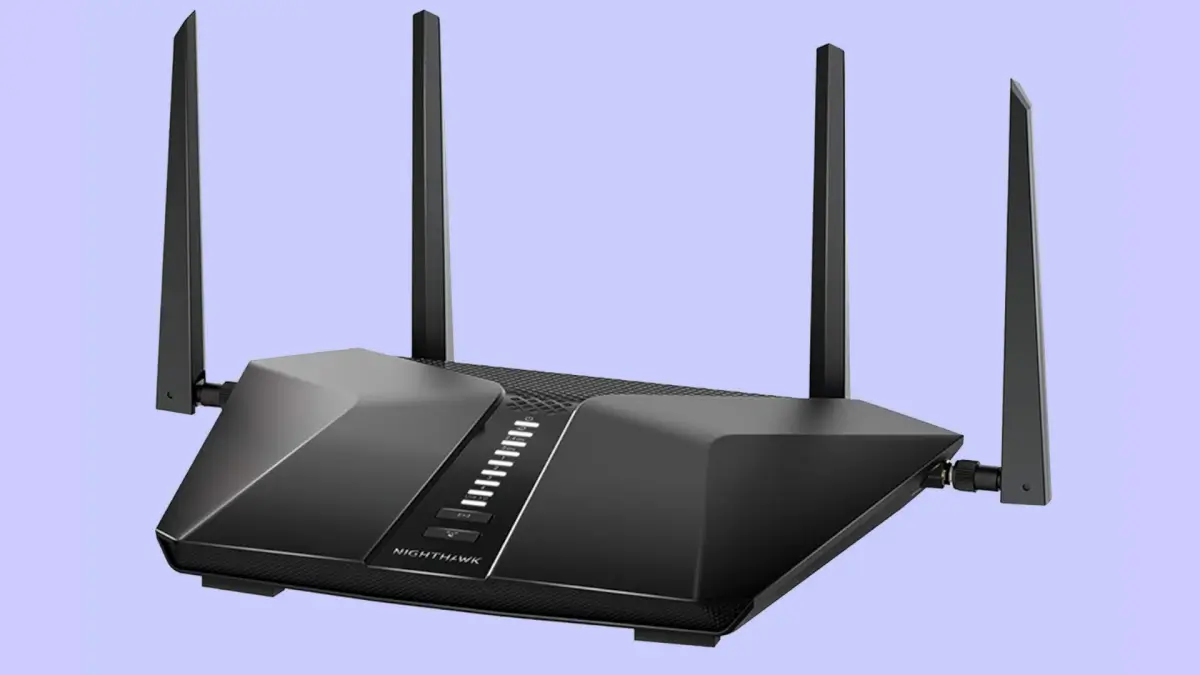
The internet is full of opportunities, but it also poses serious risks—especially for kids and teens. From explicit content to cyberbullying and excessive screen time, parents need smart solutions to protect their children online. That’s where Wi-Fi parental controls come in.
Setting up parental controls on your home router helps you filter harmful content and manage internet use across all devices. You can block inappropriate websites, set daily screen time, or pause internet access entirely. Even better, most modern routers include parental control features you can configure in just minutes.
1. Why Set Up Parental Controls at the Router Level?
While device-based controls are helpful, they have limitations. Kids can disable them or simply use another device. Router-level parental controls apply to every gadget connected to your home network—including phones, tablets, laptops, and gaming consoles.
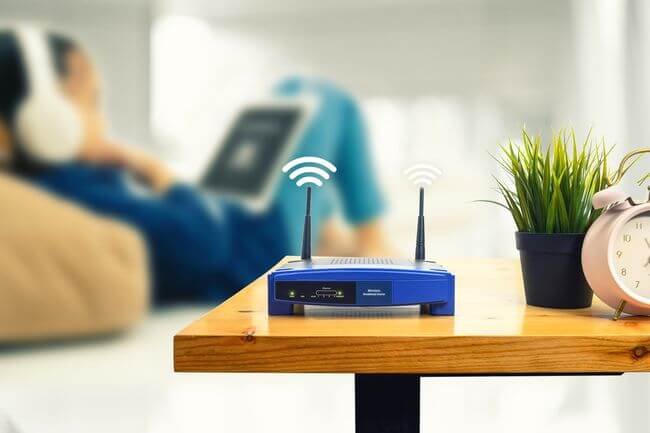
This means you can monitor and control internet access without needing to install apps on each device. It’s a more secure, centralized way to enforce online rules. Learn more about why router-based controls are effective from Common Sense Media.
2. Check Your Router for Built-In Parental Controls
Most modern routers from brands like TP-Link, Netgear, Asus, and Linksys include built-in parental control features. First, locate your router’s model number and visit the manufacturer’s website.
You can also log into your router’s admin panel:
- Open a web browser and enter the IP address (usually
192.168.1.1or192.168.0.1). - Enter your admin username and password.
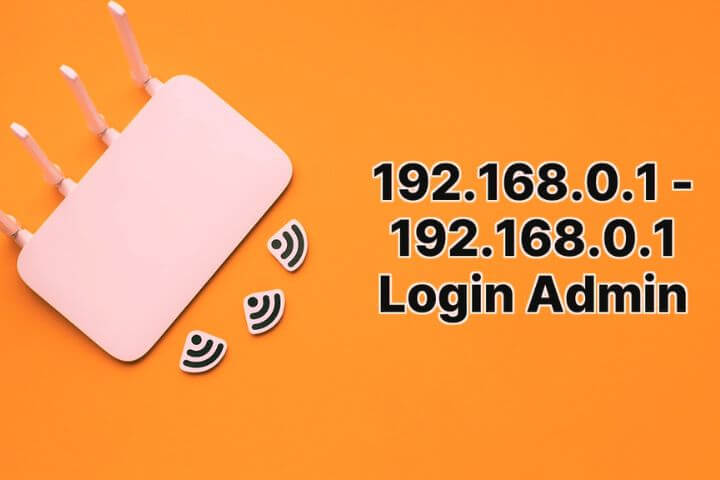
Once inside, look for a section labeled “Parental Controls,” “Access Restrictions,” or “Security Settings.” If your router lacks these features, consider upgrading or installing custom firmware like OpenDNS or DD-WRT.
3. Set Up Website Filtering and Content Restrictions
Website filtering is one of the most effective ways to protect children from adult or dangerous content. Your router may allow you to:
- Block specific domains (e.g., social media, gambling, adult sites)
- Allow only whitelisted websites
- Enable filtering by category (e.g., violence, dating, gaming)
For example, Netgear routers using Circle Smart Parental Controls offer real-time filtering, screen time management, and activity monitoring. TP-Link’s HomeShield also includes customizable filters and age-appropriate presets.
4. Create Internet Schedules and Time Limits
Controlling screen time is just as important as filtering content. Use your router’s scheduling tools to:
- Set time limits for each child’s device
- Block internet access during homework, meals, or bedtime
- Set daily usage caps to avoid excessive online time
Many routers let you assign devices to specific profiles, so each family member gets personalized settings. Learn how to schedule Wi-Fi usage with Linksys Smart Wi-Fi or similar platforms.
5. Monitor Online Activity and Usage Reports
Advanced routers offer real-time usage stats. You can see which sites your child visits, what apps they use, and how much data they consume.
Services like Google Family Link and Gryphon Parental Control Router give parents detailed insights. They also let you pause the internet instantly or approve access requests remotely.
Keep in mind that respecting your child’s privacy is important—balance monitoring with open communication about internet safety.
6. Set Up Guest Networks and Device Groups
Separate your kids’ devices from others by creating a guest network or device groups. This lets you apply different control rules to different users.
For instance, you can allow unrestricted access on your main network while restricting content and time limits on the kids’ network. Most routers offer this feature under “Guest Wi-Fi” settings.
Grouping devices helps you apply rules without managing each one individually. Asus routers, for example, allow group-level parental controls via their Router App.
Final Thoughts
Setting up parental controls on your Wi-Fi router gives your family a safer, healthier online experience. With just a few clicks, you can protect your kids from harmful content, enforce screen time limits, and reduce digital distractions. It’s one of the best things you can do as a modern parent.
Have you tried setting up parental controls at home? Share your experience or tips in the comments below—we’d love to hear from you!