
Online privacy is no longer a luxury—it’s a necessity. In 2025, your data can be tracked by websites, ISPs, and even smart devices. If you’re concerned about privacy, security, and online freedom, using a Virtual Private Network (VPN) is a smart choice.
But instead of installing VPN apps on every device, why not secure your entire network at once? By configuring a VPN directly on your home router, you protect every connected device automatically—including phones, smart TVs, and gaming consoles. This guide explains step-by-step how to do that with ease.
1. Why Set Up a VPN on Your Router?
Installing a VPN on your router gives you complete, always-on protection for every device in your home. Even gadgets that don’t support VPN apps—like Roku or Xbox—are protected.
It also saves time and system resources. You don’t have to manually connect devices to VPNs, and you can bypass region-locked content on multiple devices at once. Moreover, your IP address stays hidden, reducing your exposure to cyber threats and advertisers.
To learn more about VPN benefits, read this guide from Norton.
2. Check If Your Router Supports VPN Configuration
Not all routers are VPN-ready. Check your router’s manual or the manufacturer’s website for VPN compatibility. Popular router brands that support VPN include:
- Asus (most models support OpenVPN or PPTP)
- Netgear
- TP-Link
- Linksys
- DD-WRT or Tomato-flashed routers
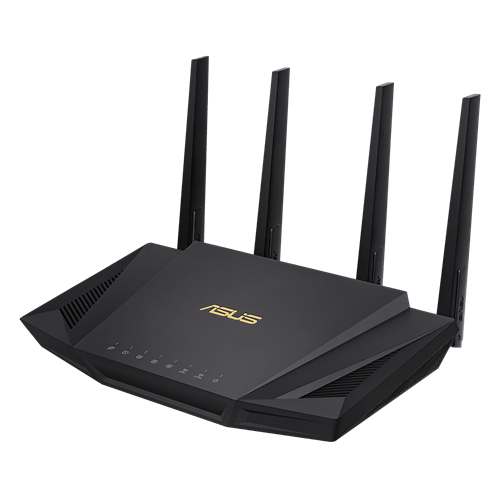
If your default firmware doesn’t support VPN, consider flashing your router with DD-WRT or OpenWRT, but proceed with caution as this can void warranties or brick your device.
Alternatively, purchase a pre-configured VPN router from trusted vendors like FlashRouters.
3. Choose a Reliable VPN Provider That Supports Router Installation
To configure a VPN on your router, you need a VPN provider that supports router-level setup. Look for providers that offer:
- OpenVPN or WireGuard configuration files
- Step-by-step router installation guides
- Good speeds and no-log policies
Some excellent choices include:

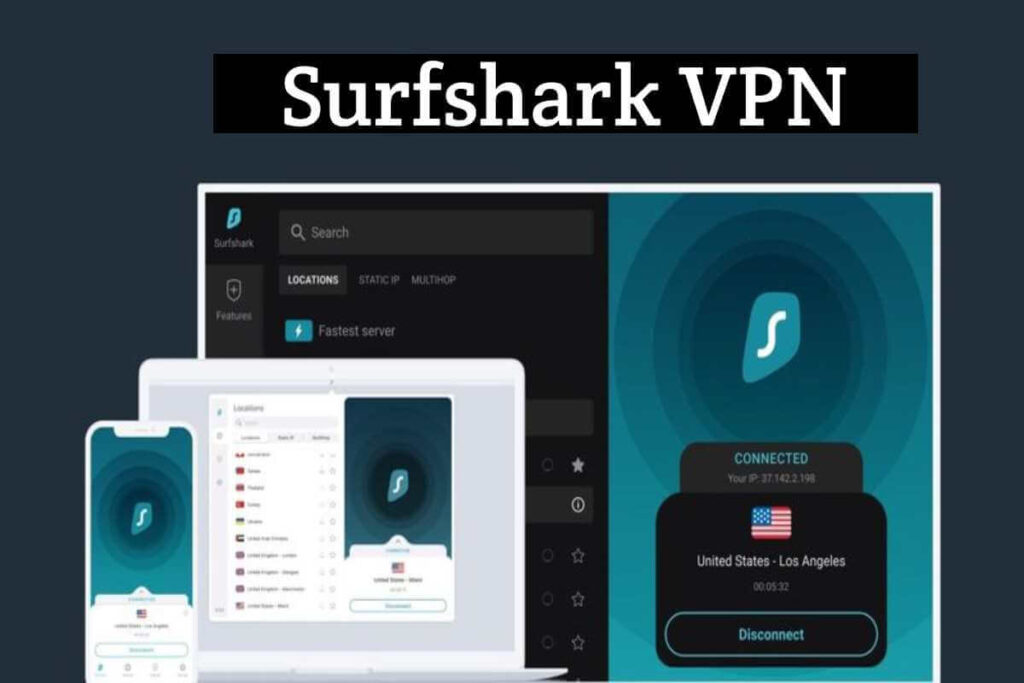
Choose one that fits your budget and performance needs. For advanced users, Mullvad VPN offers top-notch anonymity without email signups.
4. Access Your Router’s Admin Panel
To begin setup:
- Connect to your home Wi-Fi.
- Enter your router’s IP address in your browser (usually
192.168.0.1or192.168.1.1). - Log in using your admin credentials (often found on a sticker on the router).
Navigate to the VPN or WAN settings section. This is where you’ll enter your VPN provider’s configuration files.
Each brand differs slightly, so consult the provider’s router setup page. For example, ExpressVPN’s router setup page offers tutorials for specific models.
5. Import VPN Configuration Files
Download the .ovpn configuration files from your VPN provider’s website. These contain essential settings like server address, port, and protocol.
Upload these into your router’s VPN settings area. You may need to input:
- Username and password (provided by VPN service)
- Certificate files (CA cert, TLS key, etc.)
- Protocol (UDP or TCP)
Click Apply Settings and restart the router. Some routers may require a firmware reboot.
If you need help importing .ovpn files, this tutorial from NordVPN is very useful.
6. Test Your VPN Connection
To ensure everything works:
- Visit https://whatismyipaddress.com
- Check if your IP address and location reflect your VPN server
- Try accessing geo-restricted content (e.g., US Netflix if connected to a US server)
You can also test VPN leak protection using DNS Leak Test or ipleak.net.
If your IP address hasn’t changed, double-check your credentials or re-import the VPN configuration files.
7. Optional: Split Tunneling and Kill Switch Features
Advanced VPN routers allow split tunneling, letting you route specific devices through the VPN and others through your normal ISP.
Some routers and VPNs offer a kill switch, which blocks internet traffic if the VPN disconnects. This prevents accidental data exposure.
If these features matter to you, consider upgrading to Asuswrt-Merlin firmware or using pfSense for full network control.
Final Thoughts
Setting up a VPN on your router is one of the smartest steps you can take to protect your entire household’s online activity. It not only encrypts your traffic but also allows you to bypass censorship, access region-locked content, and block ISP tracking.
Have you tried setting up a router VPN before? Share your experience or questions in the comments—we’d love to help you and other readers!