A slow internet connection on Windows 11 can be incredibly frustrating, especially when you’re streaming, gaming, or working online. While your service provider might be the first to blame, the issue often lies within your device settings or network configuration.
Thankfully, there are multiple ways to boost your Windows 11 internet speed instantly. From background apps to outdated drivers, several hidden settings can significantly slow you down. Let’s explore the most effective solutions to help you stay connected and productive.
1. Restart Your Modem and Router
One of the quickest fixes is to power-cycle your modem and router. Simply unplug both devices, wait for 30 seconds, and plug them back in.
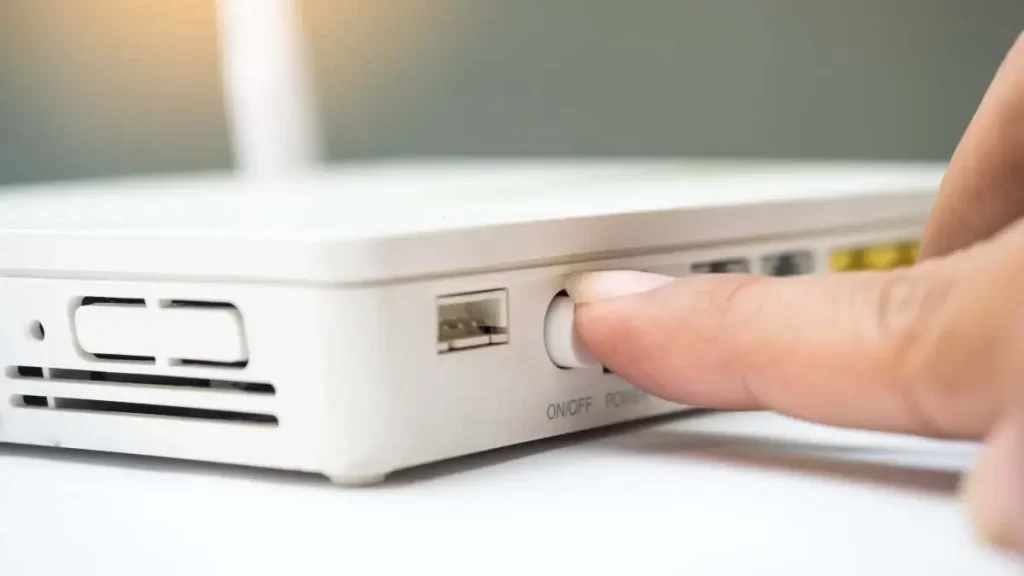
This resets the network connection and often clears minor bugs that cause slow speeds. For advanced users, resetting your router via its admin panel may also help.
2. Disable Background Apps That Hog Bandwidth
Windows 11 runs many apps in the background. Some of these consume bandwidth without your knowledge.
Head to Settings > Apps > Installed Apps and disable unnecessary apps from running in the background. You can also use Task Manager to track real-time network usage.
3. Turn Off Metered Connection
Windows may slow down your internet speed if it thinks you’re on a limited plan. Check if “Metered Connection” is turned on.
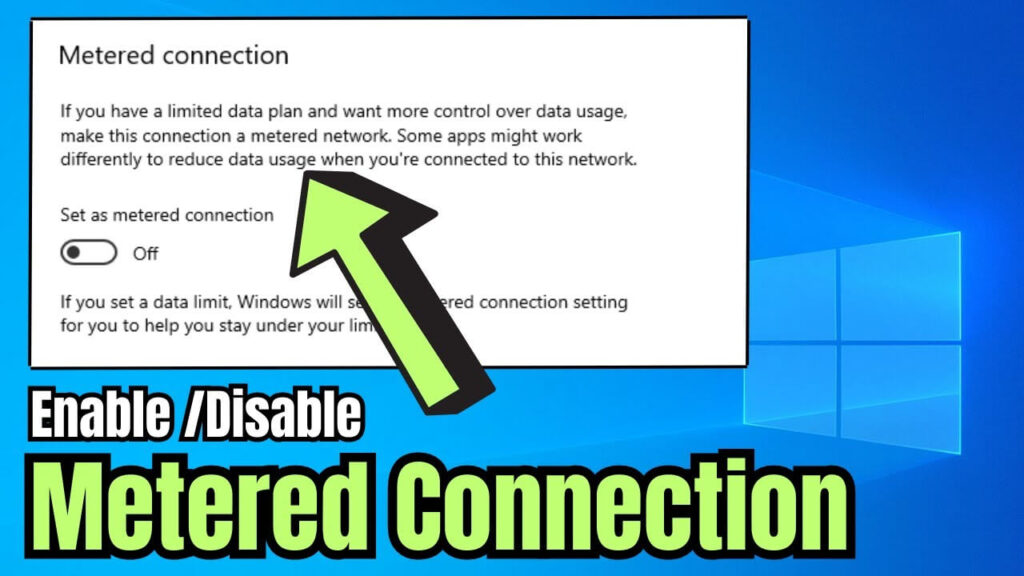
Go to Settings > Network & Internet > Wi-Fi > Properties, then toggle off Metered Connection. This ensures Windows doesn’t restrict data usage.
4. Update Network Adapter Drivers
Outdated network drivers are a common culprit for poor connectivity. You should regularly check and update them.
Use Device Manager > Network Adapters, right-click your adapter, and choose Update Driver. Alternatively, get drivers directly from your device manufacturer’s site, like Intel or Realtek.
5. Disable Windows Auto-Update Delivery Optimization
Windows 11 uses your bandwidth to deliver updates to other PCs on the network. This background service can eat up speed.
Go to Settings > Windows Update > Advanced Options > Delivery Optimization. Turn off Allow downloads from other PCs to free up your bandwidth.
6. Use a Wired Ethernet Connection Instead of Wi-Fi
Wi-Fi is convenient, but it’s prone to interference. If you’re near your router, use an Ethernet cable for better speed and stability.
A wired connection also reduces latency, which is especially useful for gamers and remote workers. Learn how to set up a wired connection.
7. Flush DNS and Reset TCP/IP
Your computer’s DNS cache can get outdated, causing connectivity issues. Flushing the cache may help.
Open Command Prompt (Admin) and run these commands:
perlCopyEditipconfig /flushdns
netsh int ip reset
Then restart your PC. For more, follow Microsoft’s guide.
8. Adjust Bandwidth Limits in Windows 11
By default, Windows may reserve part of your bandwidth for system tasks. You can change this via Group Policy.
Press Win + R, type gpedit.msc, and navigate to:
Computer Configuration > Administrative Templates > Network > QoS Packet Scheduler > Limit Reservable Bandwidth
Set it to Enabled, and reduce the limit to 0%.
9. Scan for Malware or Adware
Malicious software can secretly use your internet for unauthorized tasks. Run a full system scan using Microsoft Defender or third-party tools like Malwarebytes.
Make sure your antivirus definitions are up to date for maximum effectiveness.
10. Contact Your ISP or Upgrade Your Plan
If nothing works, the issue might be your internet plan or service provider. Run a speed test using Speedtest.net.
Compare results to your subscribed plan. If you’re consistently below promised speeds, contact your ISP or consider upgrading to a faster plan.
Final Thoughts
A slow internet connection can ruin your productivity and entertainment experience. Luckily, these quick fixes for Windows 11 can bring you back up to speed.
Try the solutions one by one to see which works best for you. Got any tips or want to share your experience? Drop a comment below and help others in the community!