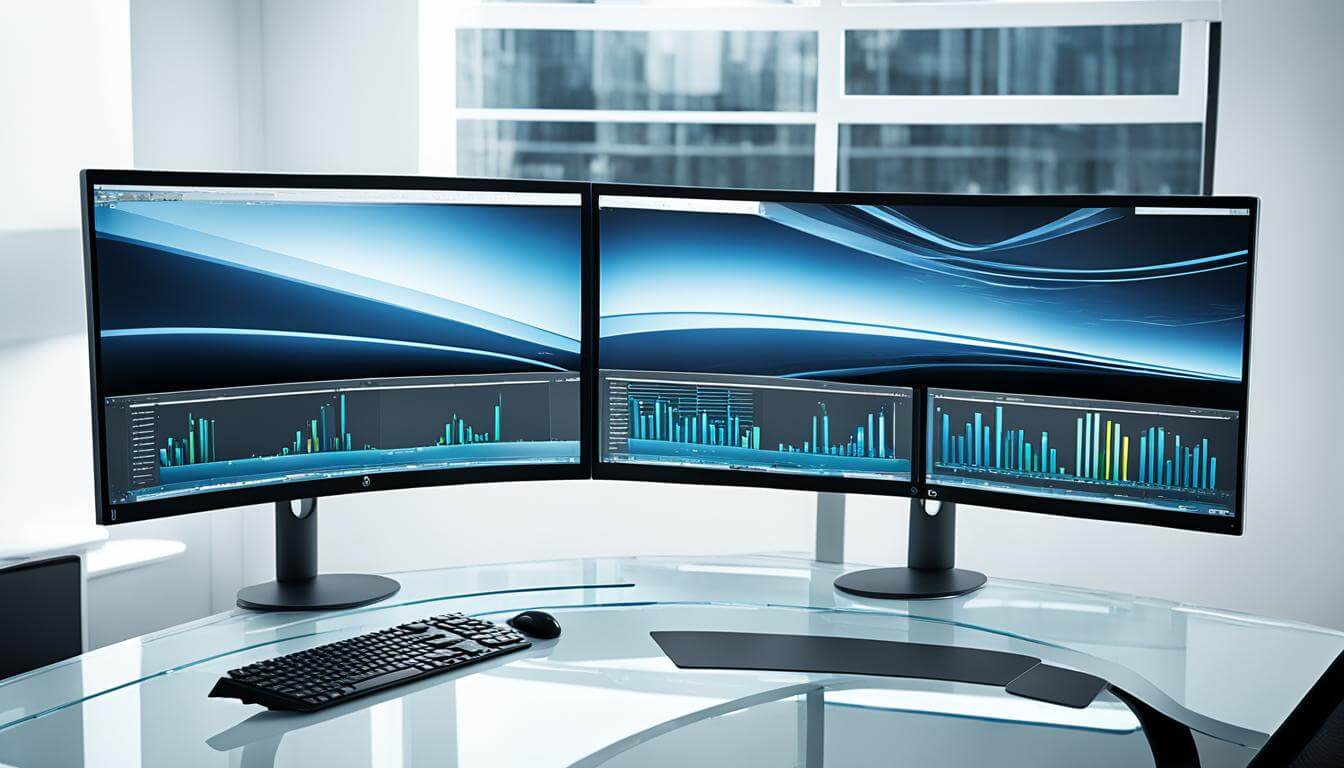
In 2025, multitasking is essential for professionals, creatives, and students alike. A dual monitor setup boosts productivity and workflow efficiency. Whether you’re editing videos, coding apps, or simply managing spreadsheets, using two screens can change how you work.
Many users don’t realize how easy it is to set up dual monitors on Windows PCs. With the right steps and tools, you can optimize screen space, streamline tasks, and make your daily computing experience far more efficient.
Why Use Dual Monitors in 2025?
The benefits of dual monitors extend beyond convenience. Studies show that multi-monitor setups increase productivity by up to 42%. You can run multiple applications side by side and reduce time switching tabs.
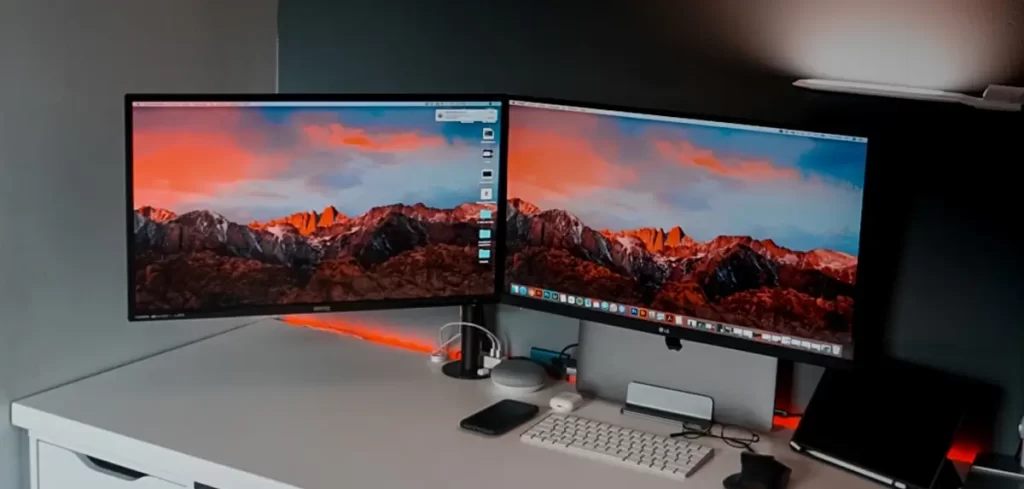
For example, developers can code on one screen and view documentation on the other. Likewise, remote workers can join Zoom calls while referencing reports. If you often work with multiple windows, a second monitor makes life easier and smoother.
What You’ll Need to Get Started
Before setting up, ensure your PC supports dual monitors. Most modern desktops and laptops do. However, you’ll also need compatible hardware.
Here’s a basic checklist:
- A second monitor (any size or brand)
- A PC or laptop with an extra HDMI, DisplayPort, USB-C, or VGA port
- Appropriate cables for connection
- Updated graphics drivers
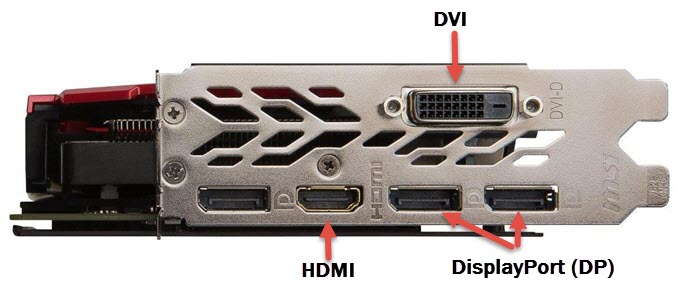
You can check your ports visually or visit your PC’s official specs page. Use tools like Speccy to check hardware information.
Step-by-Step Guide to Setting Up Dual Monitors
Step 1: Connect the Second Monitor
First, power off your PC. Connect your second monitor using the correct cable. Most monitors use HDMI, but older models may require VGA or DVI.
Once plugged in, turn on the monitor, then boot up your PC. Windows should automatically detect the display.
If your PC doesn’t detect it, press Windows + P and choose “Extend” or go to Display Settings.
Step 2: Adjust Display Settings
Right-click on your desktop and select “Display settings.” You’ll see two numbered boxes representing your monitors. If the layout doesn’t match your physical setup, click “Identify,” then drag to rearrange them.
Make sure to:
- Set your primary monitor (check “Make this my main display”)
- Choose “Extend these displays” under “Multiple displays”
- Adjust resolution and orientation as needed
Here’s a visual guide from Microsoft for deeper customization.
Step 3: Troubleshoot Common Issues
If your second monitor isn’t working:
- Check the cable and power connection
- Restart your PC
- Update your graphics drivers using Device Manager
- Try a different cable or port
You can also download the latest drivers from your graphics card manufacturer’s site such as NVIDIA or AMD.
Optimizing Productivity with Dual Monitors
Use Built-In Windows Tools
Take advantage of Snap Assist, which lets you drag windows to corners for automatic resizing. Try PowerToys FancyZones for advanced window management.
You can assign specific apps to open on specific monitors. Simply drag the window to a monitor and close it. Windows will remember your preference.
Try Third-Party Productivity Tools
Apps like DisplayFusion offer customizable hotkeys, multi-monitor taskbars, and enhanced window snapping features. Others like Actual Multiple Monitors further enhance workflow.
For content creators or streamers, software like OBS Studio allows live previews on one screen and controls on the other.
Set Monitor Stand or Mount for Comfort
Don’t overlook ergonomics. Using a dual monitor stand reduces neck strain and saves desk space. Consider VESA-compatible mounts for clean and adjustable setups.
Adjust screen height so your eyes are level with the top of the monitor. This simple change boosts comfort and productivity.
Helpful Tips for a Seamless Dual Monitor Experience
- Use matching resolution displays for smoother transitions
- Keep refresh rates consistent to avoid flickering
- Install a blue light filter like f.lux to reduce eye strain
- Invest in wireless keyboard and mouse for better desk organization
- Use shortcut keys like Windows + Shift + Arrow to move windows between screens quickly
Final Thoughts
Setting up dual monitors may seem technical, but it’s simpler than you think. With just a few steps, you’ll create a workspace that enhances performance, focus, and comfort. Whether you’re coding, editing, or studying, dual displays can transform your digital experience.
Have you tried using two monitors? What challenges did you face? Share your tips or questions in the comments below—we’d love to hear from you!