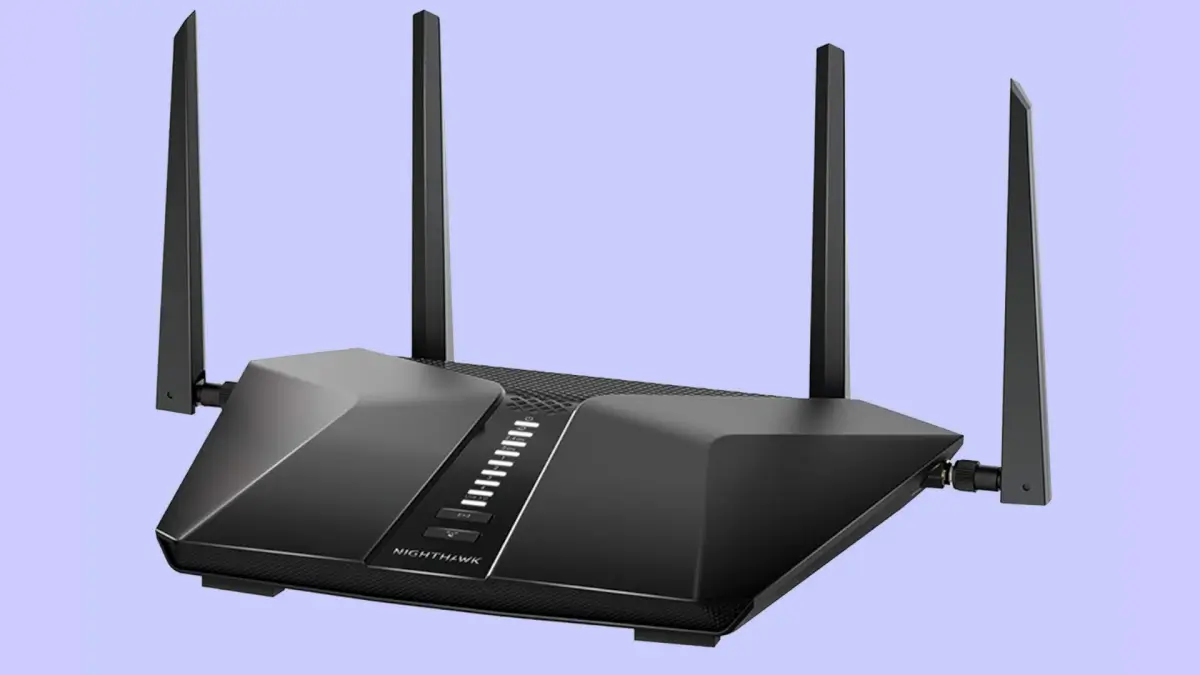
Your home Wi-Fi network is the gateway to your digital life. If not secured, it can easily be exploited by hackers. Many people overlook Wi-Fi security, but doing so exposes personal data and even smart devices to serious threats.
In this quick and practical guide, we’ll show you how to secure your wireless network and protect your home internet using simple steps. Even if you’re not tech-savvy, you can complete this in just 10 minutes. Let’s lock down your network before it becomes an open door.
1. Change the Default Router Login Credentials
The first step is updating your router’s default login details. Many routers use factory credentials like “admin” for both username and password.
To do this:
- Connect to your Wi-Fi
- Open a browser and go to your router’s IP (usually
192.168.0.1or192.168.1.1) - Login using the current credentials
- Change both username and password immediately
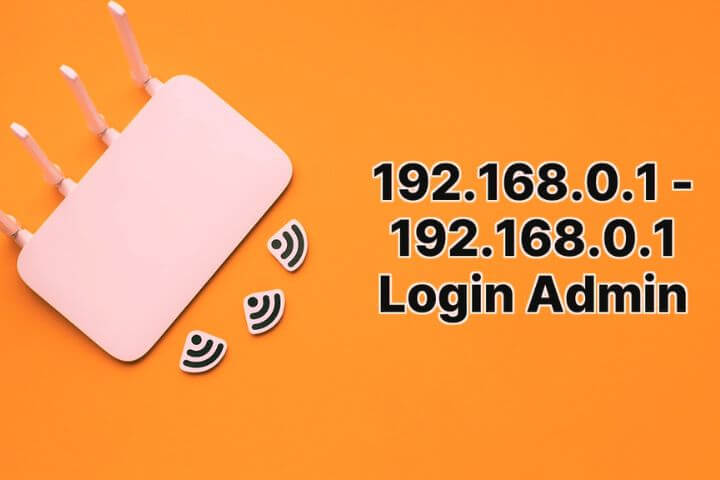
Default credentials are widely known and often targeted by automated attacks. Learn more from this router security guide.
2. Use a Strong Wi-Fi Password and WPA3 Encryption
A secure Wi-Fi password is your first line of defense. Avoid using names, birthdays, or common phrases.
When setting your password:
- Use at least 12 characters
- Combine letters, numbers, and symbols
- Avoid dictionary words
Also, choose WPA3 encryption if available. If your router doesn’t support it, use WPA2. Avoid WEP, as it’s outdated and insecure. For help, Netgear’s support page has detailed password setup guides.
3. Disable WPS and Remote Management Features
WPS (Wi-Fi Protected Setup) allows for quick device pairing, but it’s known for its weak security.
To turn it off:
- Go to your router settings
- Locate the WPS option and disable it
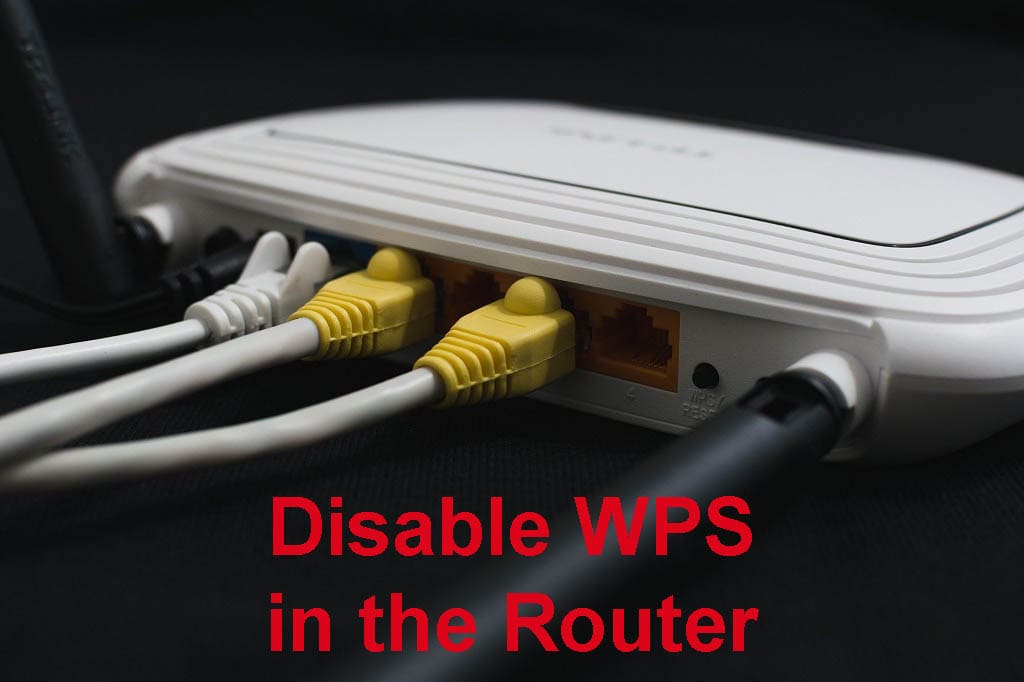
Likewise, disable remote management unless you absolutely need it. Remote access allows others to manage your router settings from the internet, which can be risky. Refer to TP-Link’s remote management guide for more information.
4. Rename Your Network SSID (and Hide It, If Needed)
Your network name (SSID) can give away too much information. Avoid using your name, address, or brand of router.
Instead:
- Choose a neutral, unique SSID
- Optionally, hide your SSID in router settings to keep it from being visible to nearby devices
Changing your SSID regularly also reduces the risk of targeted attacks. Learn how from Cisco’s home Wi-Fi tips.
5. Enable Router Firewall and Update Firmware
Most modern routers come with a built-in firewall. This protects your devices from incoming threats and port scanning.
To enable it:
- Access your router dashboard
- Find the security or firewall tab
- Make sure the firewall is active
Also, always keep your router’s firmware up to date. Firmware patches fix known vulnerabilities and improve performance. You can check for firmware updates from the manufacturer or through the router admin panel.
6. Limit Connected Devices and Set Up a Guest Network
Too many devices connected to your Wi-Fi can slow down the network and increase risk.
To manage devices:
- Access your router dashboard
- Check the list of connected devices
- Disconnect unknown or unauthorized users
Setting up a guest network is another smart move. Guests should not have access to your main network. Learn how to set one up from Asus’ guide.
7. Enable MAC Address Filtering for Extra Control
MAC address filtering lets you control which devices can access your network.
Each device has a unique MAC address. You can whitelist only trusted devices:
- Collect MAC addresses from your phone, laptop, etc.
- Enter them into the router’s MAC filtering list
While not foolproof, this adds another security layer. Details vary by router, so consult your device’s manual or this MAC filtering tutorial.
Final Thoughts
Securing your home Wi-Fi doesn’t require a technician or special tools. These steps take less than 10 minutes but offer strong protection.
Have you secured your Wi-Fi yet? Let us know in the comments or share this article with someone who needs it!