Is your Windows PC running slower than usual? You’re not alone. Many users experience sluggish performance over time. While it’s tempting to install optimization tools, many slow PCs don’t need extra software. In fact, using built-in features and settings can significantly improve performance.
Whether you’re dealing with laggy startups or delayed app launches, simple tweaks can make a big difference. In this guide, we’ll show you how to speed up your computer and optimize Windows 10 or 11 using built-in tools only. No downloads, no bloatware—just effective results.
1. Disable Startup Programs for Faster Boot Time
Too many programs launch during startup, slowing down your PC.
To manage startup apps:
- Press Ctrl + Shift + Esc to open Task Manager
- Go to the Startup tab
- Disable unnecessary programs with high startup impact
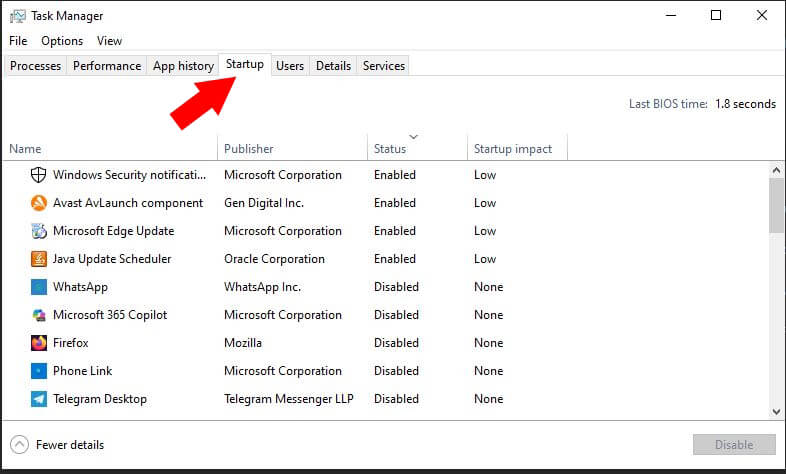
You can also use Windows Settings to access startup apps. Go to Settings > Apps > Startup.
Disabling startup bloatware improves boot times immediately.
2. Clear Temporary Files and System Junk
Over time, temporary files pile up and eat away at system resources.
To clean them:
- Press Windows + R, type
cleanmgr, and press Enter - Choose the drive (usually C:) and click OK
- Check items like Temporary Files, Recycle Bin, and System files
You can also use Storage Sense, available at Settings > System > Storage, to automate this.
Cleaning junk files can free up gigabytes of space and enhance system responsiveness.
3. Adjust Visual Effects for Performance
Windows offers fancy animations, but they consume system resources.
To change them:
- Press Windows + R, type
sysdm.cpl, and press Enter - Go to the Advanced tab > Settings under Performance
- Select Adjust for best performance or manually uncheck animations you don’t need
This simple tweak boosts speed, especially on older machines. Learn more on Microsoft’s official visual effects guide.
4. Optimize Power Settings
Your PC may be using a balanced or power-saving plan.
To change it:
- Go to Control Panel > Hardware and Sound > Power Options
- Choose High Performance or create a custom plan for best results
For laptops, high performance may reduce battery life, but it offers better speed. Explore Windows power plans for deeper customization.
5. Uninstall Unnecessary Background Services
Many preinstalled apps or old software run background services that you don’t need.
To remove them:
- Open Settings > Apps > Installed apps
- Uninstall rarely used programs
- Check Services (
services.msc) to disable unused services
Removing unused services improves CPU and RAM allocation instantly. Do this regularly to keep your PC lean and efficient.
6. Keep Windows Updated
Outdated systems often run slower due to unpatched bugs and security flaws.
To update Windows:
- Open Settings > Windows Update
- Click Check for updates and install all recommended patches
Windows updates often contain performance improvements and hardware support. Learn more at Windows Update Help.
7. Defragment and Optimize Drives
Fragmented files slow down your hard disk drive (HDD). Solid-state drives (SSDs) benefit from optimization too.
To defragment your HDD:
- Open Start, type “Defragment and Optimize Drives”
- Select your HDD, then click Optimize
For SSDs, optimization ensures TRIM commands are properly sent. Read more at Microsoft’s disk optimization FAQ.
Final Thoughts
Speeding up your Windows PC doesn’t require installing additional software. Using built-in tools is not only safer, it’s more efficient. From startup optimization to disk cleanup, these steps will help you regain speed and productivity.
Tried one of these tips? Comment below with your results or share your favorite trick for a faster PC!