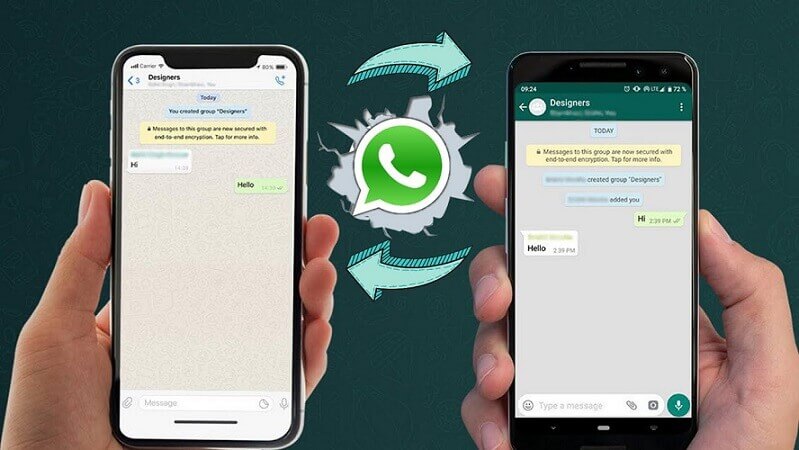
Switching from Android to iPhone can be exciting, yet the process may feel overwhelming. Especially when you need to transfer WhatsApp chats. Many users worry about losing important messages, photos, or videos during the transition. Thankfully, modern tools and updated features now make it easier than ever.
In this guide, you’ll learn how to transfer WhatsApp chats from Android to iPhone without data loss. We’ll use official tools and secure third-party apps. With this guide, you can protect your data and complete the transfer smoothly. Whether you’re switching devices or helping someone else, the process is easier than you think.
1. Prepare Your Devices for WhatsApp Chat Transfer
Before starting the process, ensure both devices are ready. First, update WhatsApp to the latest version on your Android phone. Also, make sure your iPhone is factory new or has been reset. This is necessary for iPhone’s Move to iOS tool to work properly.

Connect both devices to a stable Wi-Fi network. Keep your Android phone plugged into a power source. Likewise, make sure Bluetooth is turned on for both devices. A reliable connection prevents transfer failures and reduces the risk of data corruption.
2. Use the Official Move to iOS App
Apple’s Move to iOS app is the safest official method for transferring data. It now includes support for WhatsApp chat transfer. Download the app from the Google Play Store.
After resetting your iPhone, begin the setup process. Select “Move Data from Android” when prompted. Open the Move to iOS app on your Android device and follow the on-screen steps.
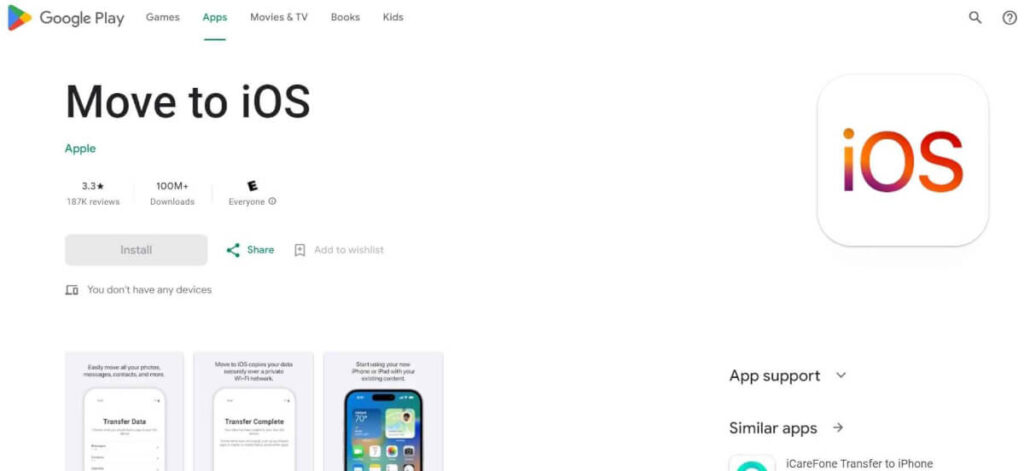
Once the two devices are connected, you’ll see the WhatsApp option listed for transfer. Select it and tap “Continue.” Wait for the transfer to complete before setting up WhatsApp on your iPhone. This method ensures a secure and complete transfer.
You can also refer to WhatsApp’s official guide for detailed instructions.
3. Transfer WhatsApp with Third-Party Apps
If your iPhone is already set up, Move to iOS may not work. In such cases, use trusted third-party apps. One reliable option is MobileTrans by Wondershare. It supports full WhatsApp chat transfer, including media files.
First, install the MobileTrans software on your PC or Mac. Connect both phones to your computer. Then, select WhatsApp Transfer from the app’s menu. Follow the step-by-step instructions to complete the transfer without data loss.
Another trusted tool is iCareFone for WhatsApp Transfer by Tenorshare. It’s user-friendly and supports WhatsApp Business as well. You can learn more about it on Tenorshare’s official site.
Always check for the latest version of the software before starting. These tools offer excellent alternatives when the official method isn’t suitable.
4. Backup WhatsApp Chats Before Transferring
Regardless of the method, always create a WhatsApp backup before beginning the transfer. This helps protect your data in case anything goes wrong. Open WhatsApp on your Android phone, go to Settings > Chats > Chat Backup.
Use Google Drive to save your latest backup. Make sure to include videos if they’re important to you. Having a backup ensures peace of mind and allows you to restore chats even if the transfer fails.
You can find more tips on backing up WhatsApp to Google Drive.
5. Final Steps After Chat Transfer
Once the transfer is complete, install WhatsApp on your iPhone. Open it and verify your phone number. When prompted, tap “Start” to finish restoring the transferred chats.
Check if all your chats and media are available. If anything is missing, restore from your backup or repeat the transfer. Also, verify that group chats, images, and voice notes are intact. This way, you ensure that no detail is left behind.
If you transferred WhatsApp Business, confirm that business settings, auto-replies, and catalog remain intact. Regularly updating your app helps maintain performance.
Learn more about WhatsApp restoration on iPhone.
Conclusion
Transferring WhatsApp chats from Android to iPhone no longer requires advanced tech skills. With the right tools and steps, anyone can do it. Whether using Apple’s Move to iOS or a third-party app, the key is preparation and patience.
Follow the process carefully to avoid any data loss. Backing up your chats, checking compatibility, and choosing the right method go a long way. With this guide, you can make the switch with confidence and keep your conversations safe.