
Shortcut arrows on desktop icons in Windows 10 and 11 can be distracting, especially if you prefer a cleaner, more minimalist look. Fortunately, you can remove these arrows using built-in tools or third-party software. In this guide, we’ll show you three effective methods to remove shortcut arrows from your desktop icons.
Method 1: Using Registry Editor (Regedit)
This method modifies the Windows registry to remove shortcut arrows permanently.
Step 1: Open the Registry Editor
- Press
Win + R, type regedit, and hit Enter. - If prompted by User Account Control, click Yes.
Step 2: Navigate to the Correct Registry Key
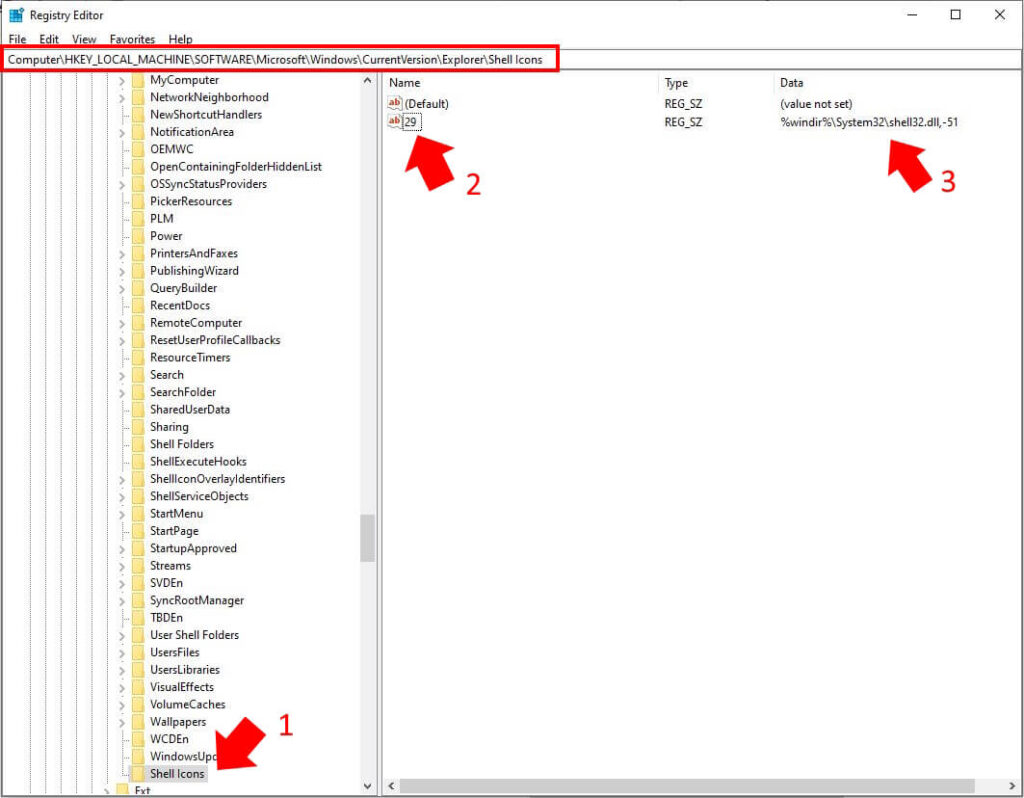
- In Registry Editor, go to:
HKEY_LOCAL_MACHINE\SOFTWARE\Microsoft\Windows\CurrentVersion\Explorer - Look for Shell Icons under Explorer.
- If it does not exist, right-click Explorer, select New > Key, and name it Shell Icons.
Step 3: Create a New String Value
- Right-click the Shell Icons key in the right pane.
- Select New > String Value.
- Name it 29.
- Double-click 29 and set its Value data to:
%windir%\System32\shell32.dll,-51 - Click OK.
Step 4: Restart Windows Explorer
- Press
Ctrl + Shift + Escto open Task Manager. - Find Windows Explorer, right-click it, and select Restart.
- If the changes do not take effect, restart your computer.
Method 2: Using Winaero Tweaker (Third-Party Tool)
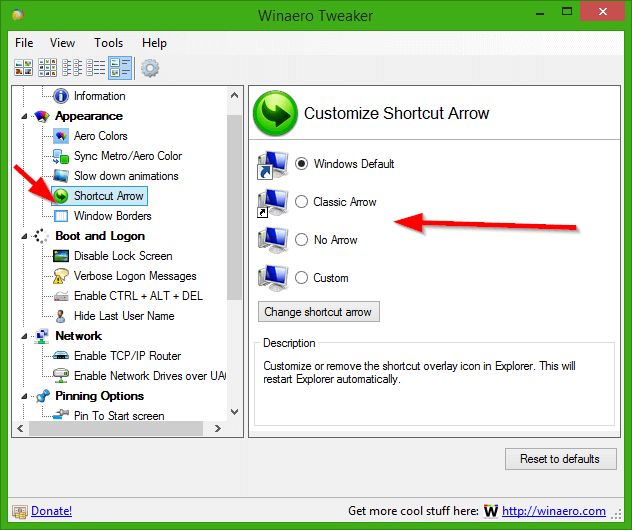
If you prefer an easier method, you can use Winaero Tweaker, a free tool designed to customize Windows.
Steps to Remove Shortcut Arrows Using Winaero Tweaker:
- Download Winaero Tweaker from winaero.com.
- Install and open the tool.
- In the left panel, navigate to Shortcut Arrow under the Appearance section.
- Select No Arrow.
- Click Apply Changes and restart Windows Explorer or reboot your PC.
Method 3: Using a Custom Transparent Icon
Instead of removing the arrows, you can replace them with a transparent icon.
Steps to Use a Transparent Icon:
- Download a transparent .ico file (search for “blank icon” online).
- Move the file to a permanent location, such as
C:\Icons\blank.ico. - Follow Method 1, but in Step 3, set the Value data of 29 to:
C:\Icons\blank.ico - Restart Windows Explorer or reboot your PC.
How to Restore Shortcut Arrows
If you ever want to restore shortcut arrows:
- Registry Method: Delete the
29entry underShell Icons. - Winaero Tweaker: Open the tool and select Windows Default Arrow.
- Transparent Icon Method: Remove the custom icon path and restart Explorer.
Conclusion
Removing shortcut arrows from desktop icons in Windows 10/11 can make your desktop cleaner and more visually appealing. Whether you prefer a manual registry edit, an automated tool like Winaero Tweaker, or a custom icon, you have multiple options to achieve the look you desire.